

If you are an Android geek & love to play with custom ROMs, recoveries & Kernels, one day youll encounter a hard bricked device. Now what does hard brick mean? If you cant boot up your device, cannot get into recovery mode or see boot logo this would actually leave your device in a state where it is not more than a brick. SP Flash tool is an application for Windows & linxu which you could find very useful in fixing extreme cases of a bricked MTK Android. SP Flash Tool also known as Smartphone Flash Tool provides many options like flashing custom or stock recoveries or Kernel (boot.img). As Mediatek Smartphone dont have an Official tool for any such problems, SP Flash tool is really a boon for Mediatek Smartphone users. To learn more about this tiny yet effective tool, refer our guide: SP Flash tool - Complete Guide. Now, without wasting much time, lets get started with unbricking your Smartphone.
Requirements:
- A PC with Windows or Linux OS.
- USB Cord
- Manually install VCOM drivers on the PC
- Your bricked Android device.
- Original/Working Stock ROM (Do a proper research as flashing the wrong ROM would permanently brick your device)
- Download SP Flash tool Latest version
How to Install VCOM Drivers:
- Open Device manager from My computer. Click on any item & Goto Actions > Add legacy hadware.
- Now, Press next & select Install drivers manually.
- Press next & click on Have disk.
- From the browse option, select the VCOM drivers as per your OS.
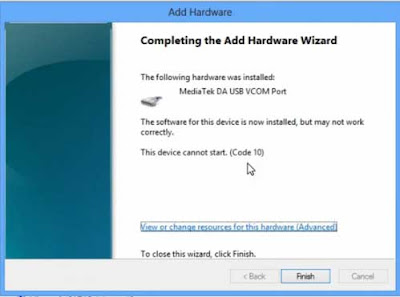
- Once its done. You will see a screen similar to this:
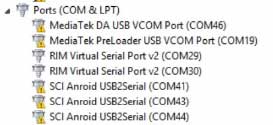
Once you are done with the Installation part, goto device manager & youll find a device similar to this:
How to Flash ROM using SP Flash Tool:
1. Remove the battery from the phone and slot it back in without booting the phone (If the battery is inbuilt then simply switch if off). Also, ensure theres no SD card in the phone (if theres an SD card slot)
2. Launch SP Flash Tool as Administrator
This will load few names on your screen with a selected box.
4. Now, if you want to format your phone, Click Format at the top.
5. Once you are done with everything, click on the download button at the top of the window
1. Remove the battery from the phone and slot it back in without booting the phone (If the battery is inbuilt then simply switch if off). Also, ensure theres no SD card in the phone (if theres an SD card slot)
2. Launch SP Flash Tool as Administrator
 | ||
| SP Flash Tool 3. Click on Scatter-loading option & browse to the scatter file of your Stock ROM. (You can find the scatter file with the original stock rom zip file)
|

4. Now, if you want to format your phone, Click Format at the top.
5. Once you are done with everything, click on the download button at the top of the window
 |
| Start flashing 6. Stop should now be prominent while other options should be grayed out 7. Connect the switched off phone (with battery inside) to the PC via USB cord 8. A progress bar should start running 9. Disconnect the phone, remove the battery for 15 seconds (if removable), slot it back in then power up the phone.  Final words As the procedure is bit complex for newbies. However, I have tried to make it as simple as possible. Dont worry! if you are stuck at any point, you can contact us from the below comment form. |