Showing posts with label bypass. Show all posts
Showing posts with label bypass. Show all posts
Wednesday, 14 December 2016
Friday, 23 September 2016
How to Bypass Factory Reset Protection on Nexus Devices
How to Bypass Factory Reset Protection on Nexus Devices
An Android security researcher has found a way to bypass the factory reset protection (FRP) in the latest Android 6.0.1 Marshmallow build complete with the latest May Android Security Update.
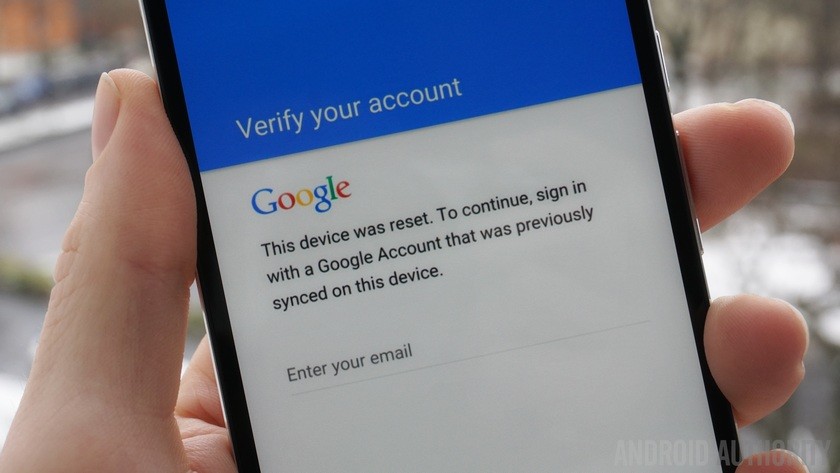
Google introduced a new security measure in Android Lollipop called Factory Reset Protection (FRP). If you are already familiar with the term factory reset, you may have figured out what FRP is. Factory Reset protection keeps your data safe in case your device gets stolen. It does so by requiring authentication after a factory reset to make the device usable.
The method detailed by RootJunky apparently manages to bypass the factory reset protection system on the Huawei-made Nexus 6P. The researcher has detailed the bypass, meant specifically for Nexus devices
Now follow the setup wizard, enter details of a new Google account, and you are good to go.
Google introduced a new security measure in Android Lollipop called Factory Reset Protection (FRP). If you are already familiar with the term factory reset, you may have figured out what FRP is. Factory Reset protection keeps your data safe in case your device gets stolen. It does so by requiring authentication after a factory reset to make the device usable.
The method detailed by RootJunky apparently manages to bypass the factory reset protection system on the Huawei-made Nexus 6P. The researcher has detailed the bypass, meant specifically for Nexus devices
Bypass Factory Reset Protection on Nexus Devices
- Turn off your phone, enter into recovery menu, and factory reset your device.
- Now you’ll see the setup wizard. Tap on any Wi-Fi connection to get the “enter password” field. But instead of entering the password hold down “,” button and go into settings.
- Tap on language and then tap on the three vertical dots on the top right of the screen and then tap on “Help & feedback”.
- Now you’ll get a search bar. Type anything there and hold the text and then select “Share” from the popup menu.
- Choose the option to share it via Google messenger. Once the app opens, tap on “New message”.
- Dial any number in the “To” input field and then tap on “Send to”.
- You’ll see a contact’s like icon on the top right of the next screen. Tap on it and then tap on the “tick mark” icon. This will bring up phone icon that will let you make a call.
- Once the call is placed hit the pause button and then hit add dialler button. This will bring up the dialler.
- In the input field, type *#*#4636#*#*. Doing so will open up the test mode.
- Tap on “Usage statistics” and then tap on the back option. Now you’ll be in device’s settings menu.
- From the settings, you can factory reset your phone.
Now follow the setup wizard, enter details of a new Google account, and you are good to go.
Available link for download

Monday, 5 September 2016
Bypass Factory Reset Protection FRP on Coolpad Note 3
Bypass Factory Reset Protection FRP on Coolpad Note 3
In this post, I will show you how to bypass FRP on your Coolpad Note 3.The reason why we were always hesitant to provide a step-by-step guide on how to bypass the Factory Reset Protection (FRP) is because we wanted to help owners who lost their phones in our own way. However, we did receive a lot of emails from our readers asking for help as they unknowingly reset their phone with password and screen lock protection on.

The Factory Reset Protection (FRP) feature was introduced on Android with the release of Android 5.1 Lollipop, which is basically meant to protect your device and prevent unauthorized usage in case it’s lost or stolen.
Coolpad Note 3 user, if somehow you’ve forgot your Google account email or password and hence are stuck at Google account verification because of FRP then we’ve got you covered. I’ve figured out a simple workaround to bypass the factory reset protection on Coolpad Note 3 running Lolli
This bypassing FRP trick is indeed useful but worrisome at the same time as it could potentially allow a thief to gain unauthorized access to your smartphone by following the stated steps. Considering how easily I was able to open to the locked device itself shows how poorly this function is implemented by the device manufacturer.
via:webtrickz
The Factory Reset Protection (FRP) feature was introduced on Android with the release of Android 5.1 Lollipop, which is basically meant to protect your device and prevent unauthorized usage in case it’s lost or stolen.
What is Factory Reset Protection (FRP)?
Factory Reset Protection (FRP) is a protection and safety feature to prevent thieves from using a stolen or lost device even if they try to hard reset the phone to factory settings or even flash it. FRP works only when you’re signed into your Google account and then if someone tries to hard reset your phone through recovery mode, they are required to enter the information for any Google account that has been earlier added to the device in order to regain access.Coolpad Note 3 user, if somehow you’ve forgot your Google account email or password and hence are stuck at Google account verification because of FRP then we’ve got you covered. I’ve figured out a simple workaround to bypass the factory reset protection on Coolpad Note 3 running Lolli
via:webtrickz
Available link for download
Thursday, 1 September 2016
iCloud Bypass Tools New Ver
iCloud Bypass Tools New Ver
iCloud Bypass Tools
If you are looking for the right tool to bypass iCloud or even remove iCloud account you have come to the right place. Below are the top 8in terms of efficiency. These tools work very well to help you bypass iCloud. Let’s look at each one individually.
1. iCloud Bypass Tool
This tool is one of the most used iCloud bypass tools in the market. It can be useful when you are looking to Bypass iCloud Activation, remove an iCloud account and even bypass the iCloud Lock.
Pros
- It is very functional and used for more than just one purpose
- Most people who have used are quite satisfied with this tool
- It works with almost all iOS devices
Cons
- There have been a few complaints about the download speed
- Despite the fact that most people seem pleased with this app, it has a relatively low rating of just 3.5 stars
Supported Devices
- iPhone 6S Plus, iPhone 6S, iPhone 6 Plus, iPhone 6, iPhone 5S , iPhone 5C, iPhone 5, iPhone 4S, iPhone 4, iPad Air, iPad Mini, iPad 4/3, iPad 2
Download Here
Available link for download
Friday, 19 August 2016
Subscribe to:
Posts (Atom)