Showing posts with label cmd. Show all posts

Friday, 30 December 2016

Hide The Hard Drives In Windows Using CMD

Hide The Hard Drives In Windows Using CMD


In our computer sometimes we want to hide our personal folder or data from others like guest, friends .But if you can hide a drive that time no one can understand that you have another drive where you share your personal folder or data. And it’s look like a magic for others. I think you already know about this but those who don’t know about this you can do this simply. What if you could hide a complete drive and nobody could see or find it anywhere?
Here I am going to share another interesting use of Command Line. You can use the Command Prompt to hide one or more drives in the explorer. You can use a free tool to do the same but if you want you can easily hide a drive in a few seconds without using a third-party software.
 Follow These Steps:
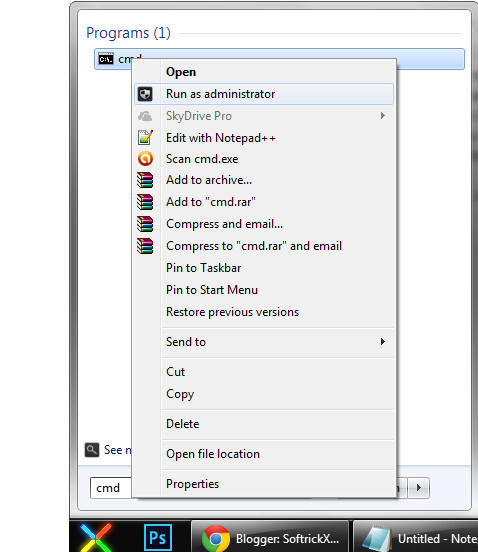
1: Open Command Prompt as Administrator.First Press Start+R, one dialogue box will come write here CMD.
2.Command prompt will start and write here DISKPART [It is not mandatory to use capital or small letter] Then press Enter

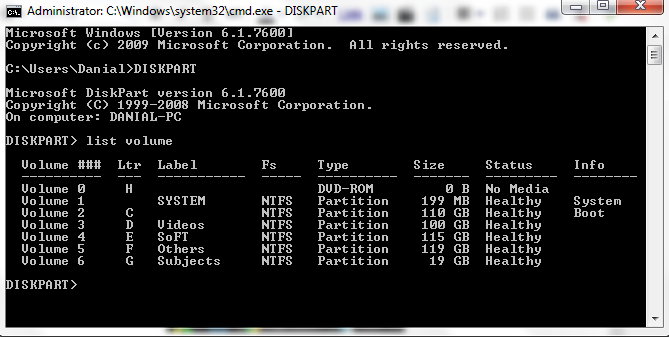
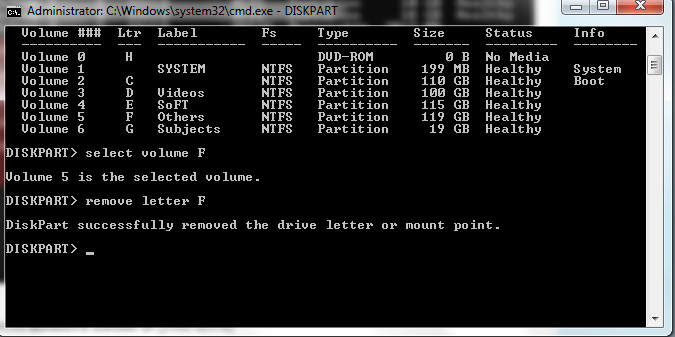
3.Disk part will work as DISKPART> write here list volume and press Enter.

4:After pressing Enter you can see a list of your disk drive and choice, which drive you want to hide.

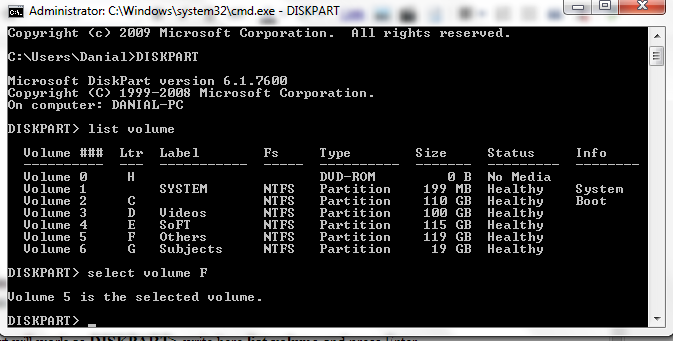
5: Now choose the volume you want to hide. Then type “select volume F” and hit Enter.Then you can see volume 5 [your number will be here] is selected.

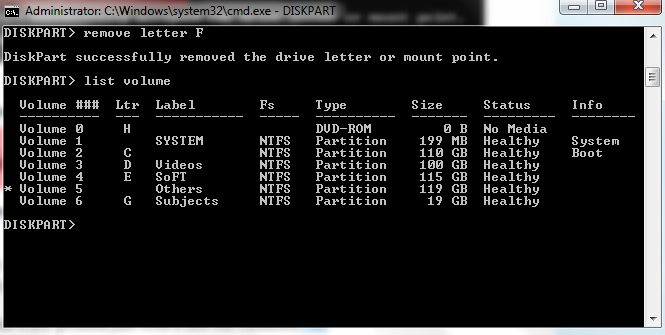
6: Then write remove letter F [your drive]
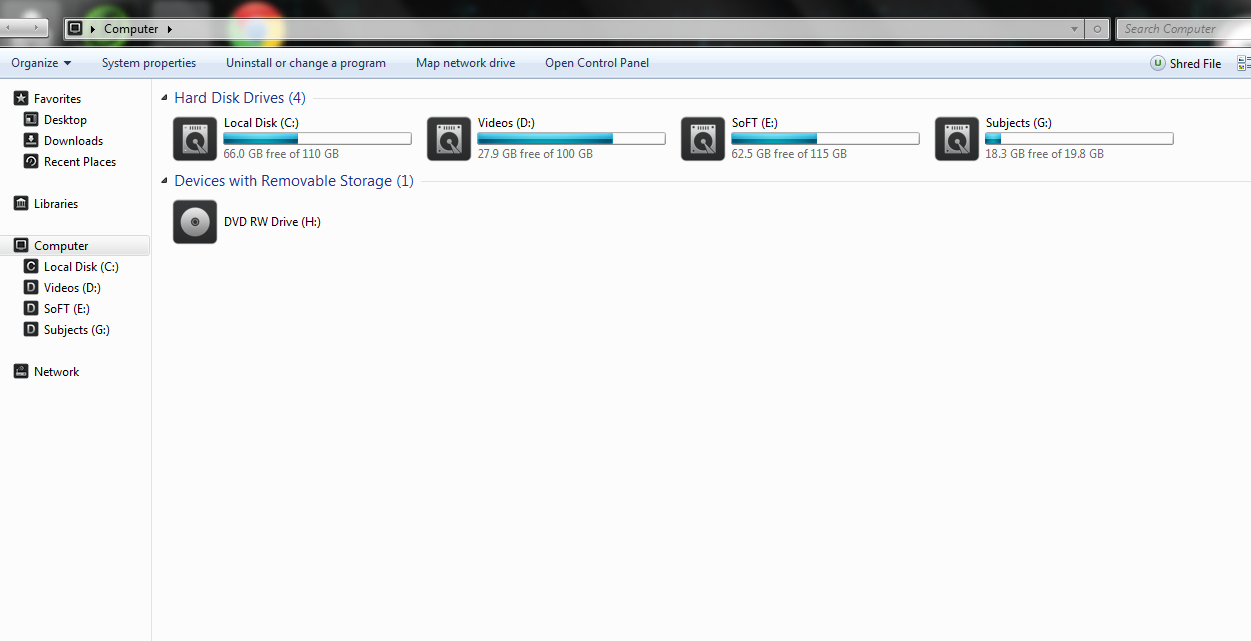
A confirmation message will come like : Disk part successfully remove the drive letter or mount point And go to My computer and see. Your drive is disappear.


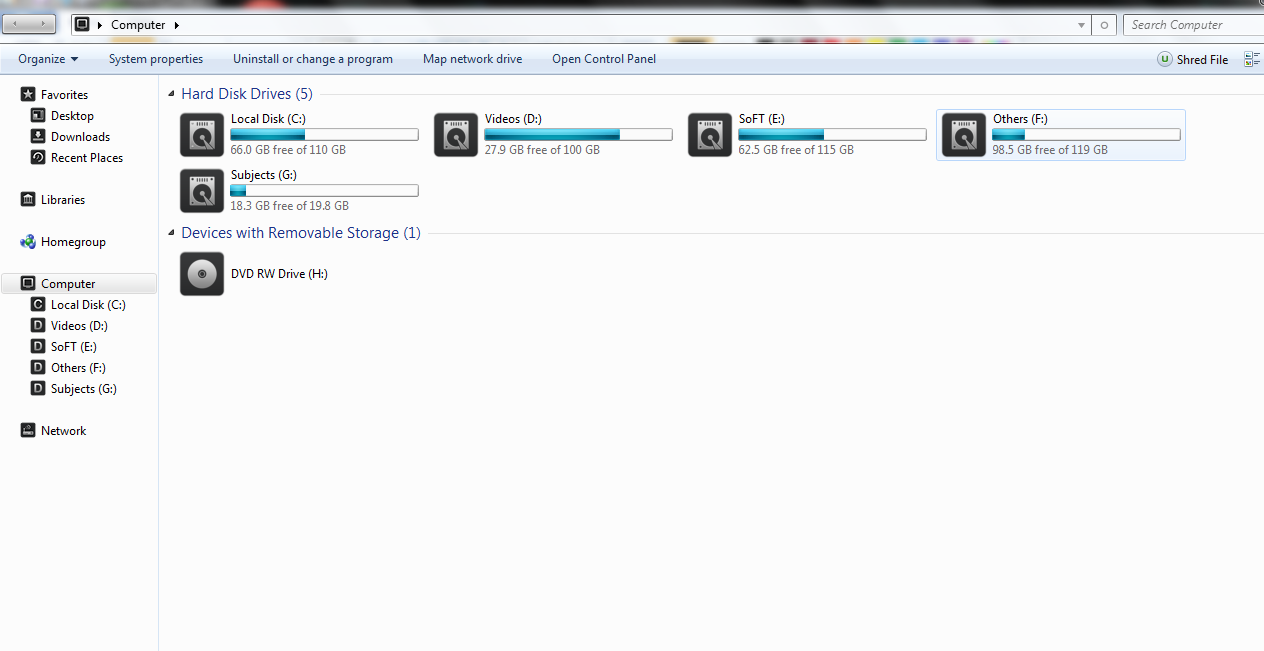
See your drives..

Done !!

How To Get Back The Hidden Drive Using CMD
Dont afraid about this you can back it again simply following this way..
1: Follow step 1-4 again.
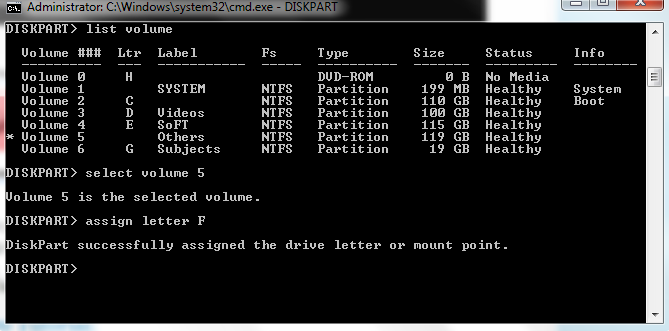
2: Now instead of typing “remove letter F”, you need to type “assign letter F” and hit the Enter key. Change F with the letter you want to assign to this drive. For security and integrity, type the same letter which was assigned to this drive earlier.
DOne :)
See Your Drives...
thank u for  read it ...

Available link for download

Read more »

Thursday, 18 August 2016

Make bootable USB In CMD

Make bootable USB In CMD


how to make a bootable USB with the help of CMD.You can Make Bootable USB of Windows 7/windows 8 by Command prompt. Follow these simple steps.. 
>Insert your Pen drive and press the start button.
>Type cmd and right click on it and start this with administrator right.
>Now on the command prompt, type the following commands
->Diskpart
List disk
// List disk command will generate the list of Disk connected to your computer like Hard disk and USB disk. This will be like in figure.
After this
->Select disk 1 // in my case USB it is as disk 1
->Clean
->Create partition primary
->Active
->Format fs=ntfs quick // Format File system=NTFS quick(don’t use Quick for deep format, just use format fs=ntfs)
->Assign
->Exit
Now copy all the files of Bootable CD to pendrive.
Just reboot your computer, enter in BIOS setup and select boot device priority as
* USB
* HDD
* CD/DVD
* Network (Other)
And Tap [F10] to save and Exit.
Enjoy.......!!! 


Available link for download

Read more »