Showing posts with label record. Show all posts
Showing posts with label record. Show all posts
Thursday, 8 December 2016
GUIDE Record better videos low light fps workaround increase bitrate on the Redmi 2
GUIDE Record better videos low light fps workaround increase bitrate on the Redmi 2
So you want to record more natural looking videos on your Redmi 2? Maybe so you get more headroom when video editing? Or does recording in low light look too choppy? Then this might be for you!
After reading Redmi 2 on XDA and checking out FreeDCam, I can say that its the best looking video recorder Ive tried on my phone.
Of course you want to see some samples (Sorry if the samples arent that great but there werent any colourful flowers around. :o)
YouTube samples
This camera app will give you more manual controls than any other video recording app plus, you can even change them while recording! Heres some specific settings that you should change…
Contrast: Change to 0 (or something slightly higher). I guess the problem with other apps is that the contrast is set too high and makes shadows look too dark and highlights look too bright.
Sharpness: Set to 0 as the video will look more soft and natural. Sharpening after recording (i.e. using a program) seems to look better…
Denoise: Turn off as colours get washed out and we start to lose some of that detail. (Or keep it on if you really hate noise.)
Theres some issues regarding focussing, manual focus doesnt seem to work. If you want to set your focus to infinity, after launching the app, set the focus to auto, tap to focus once and then set your focus to infinity.
Ok great now I can record better videos! But at night the video looks blurry, choppy…
The reason why this happens is so that more light can enter the camera for longer, causing the video to look blurry, choppy and noisy. Here is a workaround where you can now record at a constant 30fps even in the dark! This idea came from some OnePlus thread where you could rename a front camera video binary file to the rear camera video binary as the front camera records at a constant 30fps. Be aware there is a trade-off and it is that dark places wont be as bright at 30fps compared to 15fps!
If you dont do this, then 15fps could actually be helpful as you can see more with less light! FreeDCam will help a lot with a low light situation with the increased exposure and decreased contrast. Youll get more noise though. You can either activate the denoiser and/or run a denoiser plugin after you have recorded your video.
(Note: Im not responsible for anything that might happen on your phone. Ive only tested this on cm13 so the files might be different across different roms.) ;)
Note that this mod will affect all apps that record video and dark places will look very dark.
Go to /vendor/lib/
Copy the name libchromatix_ov8865_sunny_default_video.so and then back it up (rename it to something like libchromatix_ov8865_sunny_default_video.so1
Create a copy of libchromatix_ov2680_5987fhq_default_video.so and rename it to libchromatix_ov8865_sunny_default_video.so
To revert change libchromatix_ov8865_sunny_default_video.so1 back to libchromatix_ov8865_sunny_default_video.so
Increase bitrate…
You can increase the video bitrate with FreeDCam (or any other video recording app if you mess with media_profile.xml) so you can record all that fine detail (including especially the noise). Here, well change the bitrate to 40Mbps.
Just head to /system/etc/media_profiles.xml and look for:
Change maxBitRate to 40000000 and save. This edit only tells the phone the maximum bitrate it can encode at.
In FreeDCam, make sure youre in 1080p! Change video bitrate to 40000000 and audio bitrate 320000. Be aware that the video size will now be around 300MB/min so make sure you have plenty of storage. (I tried using an USB OTG Drive. It works! But the USB device interfered with the microphones and created noise. :()
So yeah. The difference might not be that noticeable to some, but to me, it looks a lot better to me. While recording, the viewfinder might lag a bit but in the actual recorded video, itll be fine. I might put more samples up or maybe you try this out and get some samples for me! Hopefully there are some people here who are interested in video. :good:
My first thread :)
After reading Redmi 2 on XDA and checking out FreeDCam, I can say that its the best looking video recorder Ive tried on my phone.
Of course you want to see some samples (Sorry if the samples arent that great but there werent any colourful flowers around. :o)
YouTube samples
This camera app will give you more manual controls than any other video recording app plus, you can even change them while recording! Heres some specific settings that you should change…
Contrast: Change to 0 (or something slightly higher). I guess the problem with other apps is that the contrast is set too high and makes shadows look too dark and highlights look too bright.
Sharpness: Set to 0 as the video will look more soft and natural. Sharpening after recording (i.e. using a program) seems to look better…
Denoise: Turn off as colours get washed out and we start to lose some of that detail. (Or keep it on if you really hate noise.)
Theres some issues regarding focussing, manual focus doesnt seem to work. If you want to set your focus to infinity, after launching the app, set the focus to auto, tap to focus once and then set your focus to infinity.
Ok great now I can record better videos! But at night the video looks blurry, choppy…
The reason why this happens is so that more light can enter the camera for longer, causing the video to look blurry, choppy and noisy. Here is a workaround where you can now record at a constant 30fps even in the dark! This idea came from some OnePlus thread where you could rename a front camera video binary file to the rear camera video binary as the front camera records at a constant 30fps. Be aware there is a trade-off and it is that dark places wont be as bright at 30fps compared to 15fps!
If you dont do this, then 15fps could actually be helpful as you can see more with less light! FreeDCam will help a lot with a low light situation with the increased exposure and decreased contrast. Youll get more noise though. You can either activate the denoiser and/or run a denoiser plugin after you have recorded your video.
(Note: Im not responsible for anything that might happen on your phone. Ive only tested this on cm13 so the files might be different across different roms.) ;)
Note that this mod will affect all apps that record video and dark places will look very dark.
Go to /vendor/lib/
Copy the name libchromatix_ov8865_sunny_default_video.so and then back it up (rename it to something like libchromatix_ov8865_sunny_default_video.so1
Create a copy of libchromatix_ov2680_5987fhq_default_video.so and rename it to libchromatix_ov8865_sunny_default_video.so
To revert change libchromatix_ov8865_sunny_default_video.so1 back to libchromatix_ov8865_sunny_default_video.so
Increase bitrate…
You can increase the video bitrate with FreeDCam (or any other video recording app if you mess with media_profile.xml) so you can record all that fine detail (including especially the noise). Here, well change the bitrate to 40Mbps.
Just head to /system/etc/media_profiles.xml and look for:
Quote:
| <VideoEncoderCap name="h264" enabled="true" minBitRate="64000" maxBitRate="20000000" minFrameWidth="176" maxFrameWidth="1920" minFrameHeight="144" maxFrameHeight="1088" minFrameRate="15" maxFrameRate="30" maxHFRFrameWidth="1920" maxHFRFrameHeight="1080" maxHFRMode="120" /> |
In FreeDCam, make sure youre in 1080p! Change video bitrate to 40000000 and audio bitrate 320000. Be aware that the video size will now be around 300MB/min so make sure you have plenty of storage. (I tried using an USB OTG Drive. It works! But the USB device interfered with the microphones and created noise. :()
So yeah. The difference might not be that noticeable to some, but to me, it looks a lot better to me. While recording, the viewfinder might lag a bit but in the actual recorded video, itll be fine. I might put more samples up or maybe you try this out and get some samples for me! Hopefully there are some people here who are interested in video. :good:
My first thread :)
from xda-developers http://ift.tt/2a1goQ2
via IFTTT
Available link for download

Monday, 5 December 2016
APP 4 1 Call Manager Block flexibly unwanted calls and record important calls
APP 4 1 Call Manager Block flexibly unwanted calls and record important calls

?Do you often been bothered by unwanted calls or forget content of important calls?. This application will be a great choice for you because it allows you to record call and block call
??The calls of a contact can be blocked or allowed, depending on time of day. For example, a call from a contact in the blacklist will be blocked to protect your sleep at night, but in the morning, the call is accepted to serve for your work. The schedule option will also let you set different the blocking scenarios for different times.
??You can enable exception handling. Some calls which should be blocked, can be allowed thanks to Call Blocking Exception. For example you would accept a call from someone who was blocked too many times in a specified period because it might be an important call.
??What about some calls that need to remember?. Calls can be recorded automatically or manually whenever you want. You do not need to worry about wasting storage of the phone when have too many recording files or using many phones because you can upload the recording files to cloud storage service to access them easily from the other phones or share them with other people by sending the links.
Main features:
- Silent/hidden operating mode
- Blacklist Scheduler
- WhiteList Scheduler
- Call Blocking Exception
- Create a temporary contact in a while
- Blocking Scenario
- Different blocking scenarios depending on time
- Recording a call automatically or manually
- Hide recording files
- Automatically delete short recordings or automatic call recordings which were not answered
- Cloud storage service
- Sharing files with public or stop sharing on cloud storage
- Protect application with a passcode or fingerprint. Do not allow access or uninstall the application
- Lightweight
I do hope that every one can spend a little time on trying using my app. In case there is any problem concerning you, please feel free to let me know so that I can bring you a better app. If you have any problem, please send an email to hoa.rong1993@gmail.com, with your phone model so I can have enough info to help you!
Download

Screenshots: 


from xda-developers http://ift.tt/2a5bpbM
via IFTTT
Available link for download
Wednesday, 31 August 2016
How to record slow motion videos on Galaxy S7 and S7 edge
How to record slow motion videos on Galaxy S7 and S7 edge
The Samsung Galaxy S6 with its excellent camera can of course also record videos in slow motion format. Videos in slow motion can give you impressions of fast processes that would be imperceptible to the human eye.
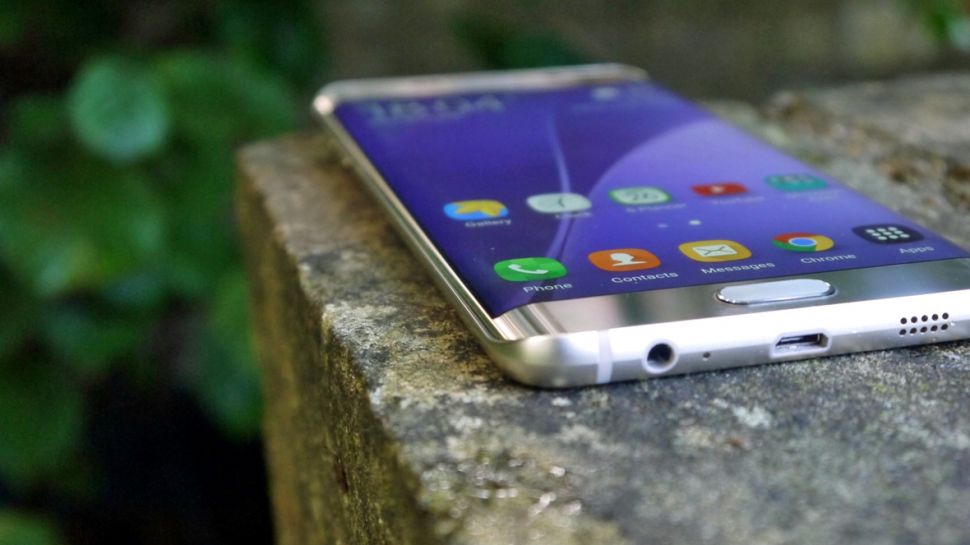
Samsung had introduced 240 FPS slow motion video recording on the S7.Slow motion videos recorded on the Samsung Galaxy S7 or Galaxy S7 edge are better and higher quality than videos recorded on a Galaxy S6 or Galaxy S5. Samsung has taken the best mobile camera in the world and has made it even better.
Samsung had introduced 240 FPS slow motion video recording on the S7.Slow motion videos recorded on the Samsung Galaxy S7 or Galaxy S7 edge are better and higher quality than videos recorded on a Galaxy S6 or Galaxy S5. Samsung has taken the best mobile camera in the world and has made it even better.
How to record slow motion videos on Galaxy S7 and S7 edge
- Open the camera app on your Galaxy S7.
- Tap on the “Mode” text at the bottom left corner of camera app.
- Select “Slow motion” from the list of options.
- Hit the red button to record video in slow motion.
Now all you have to do is to hot the record button and you will record slow motion on the Galaxy S7. Then you can edit the video using the phone’s built-in video editor. If you have recorded any videos, let us know below if you like the video quality.
Available link for download
Subscribe to:
Posts (Atom)