Showing posts with label videos. Show all posts
Showing posts with label videos. Show all posts
Thursday, 8 December 2016
GUIDE Record better videos low light fps workaround increase bitrate on the Redmi 2
GUIDE Record better videos low light fps workaround increase bitrate on the Redmi 2
So you want to record more natural looking videos on your Redmi 2? Maybe so you get more headroom when video editing? Or does recording in low light look too choppy? Then this might be for you!
After reading Redmi 2 on XDA and checking out FreeDCam, I can say that its the best looking video recorder Ive tried on my phone.
Of course you want to see some samples (Sorry if the samples arent that great but there werent any colourful flowers around. :o)
YouTube samples
This camera app will give you more manual controls than any other video recording app plus, you can even change them while recording! Heres some specific settings that you should change…
Contrast: Change to 0 (or something slightly higher). I guess the problem with other apps is that the contrast is set too high and makes shadows look too dark and highlights look too bright.
Sharpness: Set to 0 as the video will look more soft and natural. Sharpening after recording (i.e. using a program) seems to look better…
Denoise: Turn off as colours get washed out and we start to lose some of that detail. (Or keep it on if you really hate noise.)
Theres some issues regarding focussing, manual focus doesnt seem to work. If you want to set your focus to infinity, after launching the app, set the focus to auto, tap to focus once and then set your focus to infinity.
Ok great now I can record better videos! But at night the video looks blurry, choppy…
The reason why this happens is so that more light can enter the camera for longer, causing the video to look blurry, choppy and noisy. Here is a workaround where you can now record at a constant 30fps even in the dark! This idea came from some OnePlus thread where you could rename a front camera video binary file to the rear camera video binary as the front camera records at a constant 30fps. Be aware there is a trade-off and it is that dark places wont be as bright at 30fps compared to 15fps!
If you dont do this, then 15fps could actually be helpful as you can see more with less light! FreeDCam will help a lot with a low light situation with the increased exposure and decreased contrast. Youll get more noise though. You can either activate the denoiser and/or run a denoiser plugin after you have recorded your video.
(Note: Im not responsible for anything that might happen on your phone. Ive only tested this on cm13 so the files might be different across different roms.) ;)
Note that this mod will affect all apps that record video and dark places will look very dark.
Go to /vendor/lib/
Copy the name libchromatix_ov8865_sunny_default_video.so and then back it up (rename it to something like libchromatix_ov8865_sunny_default_video.so1
Create a copy of libchromatix_ov2680_5987fhq_default_video.so and rename it to libchromatix_ov8865_sunny_default_video.so
To revert change libchromatix_ov8865_sunny_default_video.so1 back to libchromatix_ov8865_sunny_default_video.so
Increase bitrate…
You can increase the video bitrate with FreeDCam (or any other video recording app if you mess with media_profile.xml) so you can record all that fine detail (including especially the noise). Here, well change the bitrate to 40Mbps.
Just head to /system/etc/media_profiles.xml and look for:
Change maxBitRate to 40000000 and save. This edit only tells the phone the maximum bitrate it can encode at.
In FreeDCam, make sure youre in 1080p! Change video bitrate to 40000000 and audio bitrate 320000. Be aware that the video size will now be around 300MB/min so make sure you have plenty of storage. (I tried using an USB OTG Drive. It works! But the USB device interfered with the microphones and created noise. :()
So yeah. The difference might not be that noticeable to some, but to me, it looks a lot better to me. While recording, the viewfinder might lag a bit but in the actual recorded video, itll be fine. I might put more samples up or maybe you try this out and get some samples for me! Hopefully there are some people here who are interested in video. :good:
My first thread :)
After reading Redmi 2 on XDA and checking out FreeDCam, I can say that its the best looking video recorder Ive tried on my phone.
Of course you want to see some samples (Sorry if the samples arent that great but there werent any colourful flowers around. :o)
YouTube samples
This camera app will give you more manual controls than any other video recording app plus, you can even change them while recording! Heres some specific settings that you should change…
Contrast: Change to 0 (or something slightly higher). I guess the problem with other apps is that the contrast is set too high and makes shadows look too dark and highlights look too bright.
Sharpness: Set to 0 as the video will look more soft and natural. Sharpening after recording (i.e. using a program) seems to look better…
Denoise: Turn off as colours get washed out and we start to lose some of that detail. (Or keep it on if you really hate noise.)
Theres some issues regarding focussing, manual focus doesnt seem to work. If you want to set your focus to infinity, after launching the app, set the focus to auto, tap to focus once and then set your focus to infinity.
Ok great now I can record better videos! But at night the video looks blurry, choppy…
The reason why this happens is so that more light can enter the camera for longer, causing the video to look blurry, choppy and noisy. Here is a workaround where you can now record at a constant 30fps even in the dark! This idea came from some OnePlus thread where you could rename a front camera video binary file to the rear camera video binary as the front camera records at a constant 30fps. Be aware there is a trade-off and it is that dark places wont be as bright at 30fps compared to 15fps!
If you dont do this, then 15fps could actually be helpful as you can see more with less light! FreeDCam will help a lot with a low light situation with the increased exposure and decreased contrast. Youll get more noise though. You can either activate the denoiser and/or run a denoiser plugin after you have recorded your video.
(Note: Im not responsible for anything that might happen on your phone. Ive only tested this on cm13 so the files might be different across different roms.) ;)
Note that this mod will affect all apps that record video and dark places will look very dark.
Go to /vendor/lib/
Copy the name libchromatix_ov8865_sunny_default_video.so and then back it up (rename it to something like libchromatix_ov8865_sunny_default_video.so1
Create a copy of libchromatix_ov2680_5987fhq_default_video.so and rename it to libchromatix_ov8865_sunny_default_video.so
To revert change libchromatix_ov8865_sunny_default_video.so1 back to libchromatix_ov8865_sunny_default_video.so
Increase bitrate…
You can increase the video bitrate with FreeDCam (or any other video recording app if you mess with media_profile.xml) so you can record all that fine detail (including especially the noise). Here, well change the bitrate to 40Mbps.
Just head to /system/etc/media_profiles.xml and look for:
Quote:
| <VideoEncoderCap name="h264" enabled="true" minBitRate="64000" maxBitRate="20000000" minFrameWidth="176" maxFrameWidth="1920" minFrameHeight="144" maxFrameHeight="1088" minFrameRate="15" maxFrameRate="30" maxHFRFrameWidth="1920" maxHFRFrameHeight="1080" maxHFRMode="120" /> |
In FreeDCam, make sure youre in 1080p! Change video bitrate to 40000000 and audio bitrate 320000. Be aware that the video size will now be around 300MB/min so make sure you have plenty of storage. (I tried using an USB OTG Drive. It works! But the USB device interfered with the microphones and created noise. :()
So yeah. The difference might not be that noticeable to some, but to me, it looks a lot better to me. While recording, the viewfinder might lag a bit but in the actual recorded video, itll be fine. I might put more samples up or maybe you try this out and get some samples for me! Hopefully there are some people here who are interested in video. :good:
My first thread :)
from xda-developers http://ift.tt/2a1goQ2
via IFTTT
Available link for download

Friday, 25 November 2016
FXGuru Dale un efecto especial a tus videos
FXGuru Dale un efecto especial a tus videos

Dale un efecto especial a tus videos, que sorprendera a tus amigos, parecera sacado de una pelicula. Con esta aplicacion podras darle un toque cinematografico a tus videos añadiendoles efectos visuales desde ecenas de ciencia ficcion hasta de accion explosiva en un tiempo de diez segundos, tiempo suficiente para que pongas a volar tu imaginacion.
Esto es posible gracias a la tecnologia MotionMatch™ que te permite agregar movimientos muy reales mientras filmas. La aplicacion pone a tu disposicion una serie de efectos, de los cuales la mayoria son pagos, como era de esperarse, solo 5 son gratis, y es de agradecer. Ademas cuenta con filtros cinematograficos disponibles para mejorar la atmosfera de cualquier escena y la posibilidad de compartir tus videos directamente desde la aplicacion.
Una aplicacion sin duda muy completa en su segmento y la mejor, el resto de apps de este tipo que he podido probar ofrecen efectos muy pobres que no sorprenden a nadie. Ojala sigan mejorando cada dia y añadan mas efectos gratis.
INSTALAR
Available link for download
Friday, 21 October 2016
3 Ways To Download Facebook Videos Without Any Software
3 Ways To Download Facebook Videos Without Any Software
In many other tricks and tutorials to downloads the Facebook videos with many other plugins or software. After playing with dozens of plugins/extensions, I decided to find some other way of downloading Facebook videos, because none of the plugin was willing to work. May be Facebook changed its API after all those plugins were developed. They have some issue in it and not operates well in the all situations to download any video from Facebook.

People share videos on Facebook, and there will be many videos you come across that you will love and want to keep for offline viewing. Downloading them makes all of that possible.In this trick i will tell you how to download any video from Facebook without any other third party software. Finally I have three working ways of downloading any video on Facebook.
1: Download Facebook Videos With Downvids
Downvids is another web service that allows you to download any Facebook video you want by pasting the Facebook video URL to its Homepage.
Click the download button.
Once the applications completes fetching the video and creates the download link, you will be shown the download links for the video. You can also select the quality of the video you want to download.
2: Download Facebook Videos By Changing The URL
Facebook videoz is a free service that allows you to download Facebook videos by just adding videoz after facebook in the URL of any Facebook video.
This will help you to download any video at any time in your Pc or Cell Phones.
NOTE Don’t forget to change the "https" to "http"
- Open any video on Facebook.
- In the URL, change https://www.facebook.com/… with http://www.facebookvideoz.com/…
- Scroll down and click the download link.
Done!
3. Download Facebook Videos Manually
The original URL of the Facebook video is revealed once you play the video on a mobile device. Since we can open the Facebook’s mobile version on our desktop browser, we can download videos using this trick.
THANXX
Available link for download
Tuesday, 13 September 2016
Download One Tap Video Download Videos from any Website
Download One Tap Video Download Videos from any Website
Many Websites uses the built-in video player to watch the videos, but it consume lots of your data also if you lose the signal then you can lose the video. So apart from watching the videos, you can also download the videos from any website on Android phone. Many websites don’t let you download videos including Facebook, but you can Download One Tap Video Download to download videos from any Website. With One tap video download you can download videos from Facebook, download videos from YouTube, download videos from Vine or from any other websites. So Download One Tap Video Download from below to download videos from any websites.

Requirements:
- Your device must be Rooted
- Your device must have Xposed Framework installed.
- I take no responsibility for any fault or damage caused by any procedures of the app.
Steps to Use and Download One Tap Video Download –
1) First Install Xposed Installer and Install Xposed Framework.
2) Now download and Install One Tap Video Download from PlayStore.
3) Now Activate the module in Xposed Installer app and reboot your device.
4) Configure the One tap video download application as you like.
5) To download videos from Facebook you need to download One Tap Facebook Module and activate the module.
6) To download videos from YouTube you need to download One Tap YouTube Module and activate the module.
7) To download videos from Vine you need to download One Tap Vine Module and activate the module.
8) Now reboot the device after activating the module.
So Download One tap video download to download videos from Facebook, download videos from YouTube, download Vine videos or download videos from any websites. Share this with your friends and comment if you have any doubts.
Available link for download
Wednesday, 31 August 2016
How to record slow motion videos on Galaxy S7 and S7 edge
How to record slow motion videos on Galaxy S7 and S7 edge
The Samsung Galaxy S6 with its excellent camera can of course also record videos in slow motion format. Videos in slow motion can give you impressions of fast processes that would be imperceptible to the human eye.
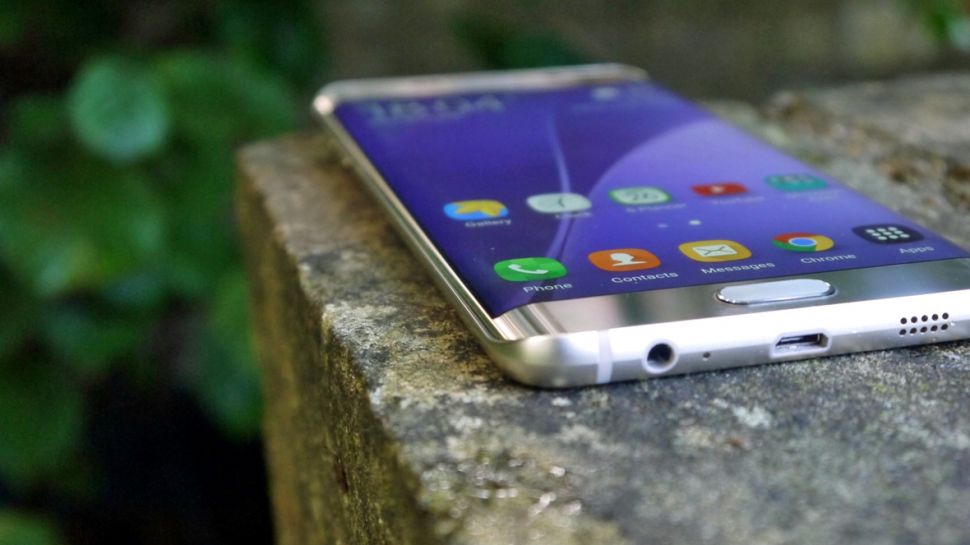
Samsung had introduced 240 FPS slow motion video recording on the S7.Slow motion videos recorded on the Samsung Galaxy S7 or Galaxy S7 edge are better and higher quality than videos recorded on a Galaxy S6 or Galaxy S5. Samsung has taken the best mobile camera in the world and has made it even better.
Samsung had introduced 240 FPS slow motion video recording on the S7.Slow motion videos recorded on the Samsung Galaxy S7 or Galaxy S7 edge are better and higher quality than videos recorded on a Galaxy S6 or Galaxy S5. Samsung has taken the best mobile camera in the world and has made it even better.
How to record slow motion videos on Galaxy S7 and S7 edge
- Open the camera app on your Galaxy S7.
- Tap on the “Mode” text at the bottom left corner of camera app.
- Select “Slow motion” from the list of options.
- Hit the red button to record video in slow motion.
Now all you have to do is to hot the record button and you will record slow motion on the Galaxy S7. Then you can edit the video using the phone’s built-in video editor. If you have recorded any videos, let us know below if you like the video quality.
Available link for download
Sunday, 28 August 2016
Fotos y videos promocionales del Sony Xperia SP
Fotos y videos promocionales del Sony Xperia SP

Sony presento el Xperia SP oficialmente el pasado 18 de marzo en Rusia, aquí te traemos los vídeos promocionales y las fotos de prensa para que puedas detallarlo mas, sin duda alguna tiene muy buen diseño y dara de que hablar este terminal cuando este a la venta, el precio sera de 399€, para US debería ser $399, ya que entra a competir en la gama media alta.
Fotos de prensa
Fotos de prensa


Vídeos Promocionales
Available link for download
Subscribe to:
Posts (Atom)