Showing posts with label unbrick. Show all posts
Showing posts with label unbrick. Show all posts
Sunday, 20 November 2016
HOW TO UNBRICK INFINIX HOT NOTE X551
HOW TO UNBRICK INFINIX HOT NOTE X551

Most people brick their infinix hot note while trying to update it. Follow the procedures below an unbrick your device.
Download Android ADB drivers here or here
Download SP Flash tool here
Download the Scatter file an CWM Recovery of INFINIX HOT NOTE X551 from here
Download SP Flash tool here
Download the Scatter file an CWM Recovery of INFINIX HOT NOTE X551 from here
Download INFINIX HOT NOTE X551 ROM from here.
Extract an install the Adb drivers on your PC.
Extract the infinix hot note X551 files.
Extract the infinix hot note X551 files.
Launch Flash_tool from the extracted files.

Click on Scatter Loading on SP Flash tool then select the scatter file of INFINIX HOT NOTE X551 you downloaded.
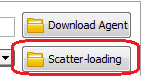

Tick only Recovery from the list then click on Location after EMMC_USER of Recovery Line as shown below. Select the CWM Recovery file you downloaded.
Tick only Recovery from the list then click on Location after EMMC_USER of Recovery Line as shown below. Select the CWM Recovery file you downloaded.


Now click Download on SP Flash Tool.

Turn off the device and connect it to the PC holding down vol + button. (This is just to make the PC detect the device easy and start the flashing process.)
The process will take about 30 seconds to complete. When you see the successful sign, unplug your device from the PC.
Copy the extracted files of the Rom to your sdcard > clockworkmod > backup. (Create these folders if they are not available.)
Insert the sdcard into the device and boot into recovery mode.
Select backup and restore option.
Select restore
Browse through the folders and select the backup file you copied in the memory card.
Wait for the Process to complete then select reboot system now.
First booting after this process might take a while. Be patient ............. ;)
Available link for download

Friday, 21 October 2016
Lg F160K korean unbrick
Lg F160K korean unbrick

Fix brick LG f160k Korean
First download the minimal flash tools install them Download the package below link or download recovery img from it place it in the folder or minimal fastboot tool
press vol down and power key on phone it ill show fastboot comant mode connect it to usb cable make sure drivers are Installed
now type the comand
fastboot flash recovery recovery.img
after flash type fastboot reboot
now your phone will goto download mode unplug the cable and battery now put bater back in and phone will start up normally if your rom is fine else install rom search on google
it works for me best of luck for you .......
Minimal Fastboot & Adb Download
Package file Download
Available link for download
Tuesday, 18 October 2016
RIFF JTAG LG F 160K Optimus LTE2 Unbrick Dead Boot Repair Supported
RIFF JTAG LG F 160K Optimus LTE2 Unbrick Dead Boot Repair Supported

Note, one simple way to connect over JTAG – connect USB cable to PC and insert battery. In this case phone is automatically powered on.
To resurrect LG F160K:
Solder JTAG cable to LG F160K JTAG pads;
Connect USB cable to phone and PC;
Insert battery;
Make sure LG F160K is selected in the list of models;
Click Resurrect button;
Wait till software signals a successful operation completion;
Disconnect USB cable, de-solder JTAG wires;
Now phone is in bootable condition, that is, even if it does not start up normally, you can flash it using original Samsung downloader software to restore it to the working state.
.
Available link for download
Saturday, 24 September 2016
How to unroot unbrick Nexus 5 in Android 6 0 Marshmallow Rom
How to unroot unbrick Nexus 5 in Android 6 0 Marshmallow Rom
Heres a complete guide to show you how to unroot/unbrick the Nexus 5 and restore it to complete stock, like the day you first bought it on your Windows, Mac, and Linux/Ubuntu computer. This will also remove a bootloop from your Nexus 5 if you have one!

This method will remove any sign of root, restore you to stock ROM, and even lock the bootloader. Once you finish the tutorial your Nexus 5 will be safe enough to send back to Google/carrier removing any sign you modified the Nexus 5.
This method will remove any sign of root, restore you to stock ROM, and even lock the bootloader. Once you finish the tutorial your Nexus 5 will be safe enough to send back to Google/carrier removing any sign you modified the Nexus 5.
Follow the Step-by-Step Guide Below to Unroot the Nexus 5!
1. Power off your phone.
1. Power off your phone.
2. Enter your phone into Bootloader Mode. Press the volume up, volume down, and power button all at the same time. When your phone vibrates let go of the power button, but keep holding onto the volume up and down button.
[ads-post]
3. Plug in your phone via microUSB.
4. Download and extract UnrootNexus5.zip
5. Move the folder to your desktop.
6. On your computer open up "Device Manager" and if you see "Android Device" with a yellow triangle next to it install the drivers that are included in UnrootNexus5.zip. If you see "Bootloader Interface" move to step 7.
7. Open up Command Prompt for Windows or Terminal for Mac/Linux/Ubuntu and type (press enter after each line):
cd Desktop
cd UnrootNexus5
fastboot flash bootloader bootloader-hammerhead-HHZ11d.img
fastboot reboot-bootloader
fastboot flash radio radio-hammerhead-M8974A-1.0.25.0.17.img
fastboot reboot-bootloader
fastboot -w update image-hammerhead-krt16m.zip
8. After that process your phone will automatically reboot, but it might get stuck on the "X" boot animation.
Your phone will now boot up and you are unrooted.
Available link for download
Tuesday, 6 September 2016
How To UnBrick Lenovo A526 Using SP Flash Tool With Tested Firmware
How To UnBrick Lenovo A526 Using SP Flash Tool With Tested Firmware
How To UnBrick Lenovo A526 Using SP Flash Tool With Tested Firmware
These tutorial will guide you the steps that you should follow to unbrick your Lenovo A526 and I will share here also the Firmware that I use to unbrick this Lenovo A526.
These also works for this following problem you may encounter in your Lenovo A526.
These also works for this following problem you may encounter in your Lenovo A526.
1.Hang in logo
2.Rebooting
Downloads:
Lenovo A526 Firmware/Stock ROM

VCom Drivers
Drivers Auto Installer
Sp Flash Tools
Sp Flash Tools
After finish downloading all files put in one folder in desktop to easily navigate the files.
If you using Window 7 OS
Connect your phone in PC using Micro USB Cable in turn-off mode and open Drivers Auto Installer and run the install-window batch file.Like shown in the image.


3. If the driver is successfully installed MediaTek DA USB VCOM will appear in the New Hardware Wizard.

2.Now,Click Scatter-loading

3.Now,A window will pop-out and Browser for MT6582_Android_scatter_emmc_DH.(Follow on the image)

4.Now,Check all Box and manually load all files and after finish loading all files,click on now Download.(Number 2 in the image)

5.Now,Connect your phone to PC using USB Cable while pressing Volume Down.When successfully connected progress bar will run and change to different colors.Wait until flashing complete and a dialog window will pop-out saying download OK.

Some workarounds:
If you encounter PMT_Changed error here is what you do:
In Older Version of FlashTool
Load the scatter file
Click in Format (a new menu will popup)
Make sure that you select Format whole flash except bootloader then press OK
Connect your phone in bootmode (Turn off your device then hold Volume UP or VOLUME DOWN then insert USB)
It should detect your phone and continue to flash.
Then Click Download to fully flash your phone.
Hard Reset your phone after flashing.
In Latest version of Flashtool
Load the scatter file
Choose Format + Download (Underneath Scatter-loading file)
Then Click Download and wait until it is done flashing
For Invalid IMEI:
Your Phone/Tablet must be rooted first
Restore yong IMEI in MTKDroidTools version 2.5.3. You will have this error when you format your phone in Flashtool as I had experienced. To restore download MTKDroidTools version 2.5.3 After you extract the file. Open the green robot, you must enable the usb debugging in your phone. It is usually located in Settings>Devoloper Mode then look for usb debugging. After enabling it. Connect your phone in your computer then in MTKDroidTool click on ROOT. Wait for it to finish, then Click in IMEI/NVRAM, input 15 number in each box. Then click REPLACE. Then click Reboot or you can manually turn off your phone. Then turn your phone on again. You can see that you have fully restored your IMEI.
Thats It Very Easy!
Something Wrong in my Post?Feel Free to comment Below!
Dont Forget to Like us on Facebook or Subscribe to us via E-mail
2.Rebooting
|
| After Finish flashing |
Downloads:
Lenovo A526 Firmware/Stock ROM
VCom Drivers
Drivers Auto Installer
Sp Flash Tools
Sp Flash Tools
After finish downloading all files put in one folder in desktop to easily navigate the files.
Installing Drivers (Skip this Step if you have already installed the drivers of your phone)
First thing first,Before you can flash/install rom in your phone you must secure first that your phone is detected in your PC.If you using Window 7 OS
Connect your phone in PC using Micro USB Cable in turn-off mode and open Drivers Auto Installer and run the install-window batch file.Like shown in the image.
The drivers will automatically installed in your PC.
If You using Window XP
Connect your phone in PC using Micro USB Cable in turn-off mode while pressing Volume Up or Volume Down.This will detect and look for the driver.
1. This is the first time that you will connect your phone and it will search for the correct driver.
2. Check include this location ... ... and click on browse. Look for USB VCOM Driver and Click on 2K_XP_COM folder if you are using Windows XP or Win7 for Windows 7 and then press OK when you are done picking the right folder for the driver.
Flashing/Install new Firmware/Stock ROM
1.Open Sp Flash tool2.Now,Click Scatter-loading
3.Now,A window will pop-out and Browser for MT6582_Android_scatter_emmc_DH.(Follow on the image)
4.Now,Check all Box and manually load all files and after finish loading all files,click on now Download.(Number 2 in the image)
5.Now,Connect your phone to PC using USB Cable while pressing Volume Down.When successfully connected progress bar will run and change to different colors.Wait until flashing complete and a dialog window will pop-out saying download OK.
Some workarounds:
If you encounter PMT_Changed error here is what you do:
In Older Version of FlashTool
Load the scatter file
Click in Format (a new menu will popup)
Make sure that you select Format whole flash except bootloader then press OK
Connect your phone in bootmode (Turn off your device then hold Volume UP or VOLUME DOWN then insert USB)
It should detect your phone and continue to flash.
Then Click Download to fully flash your phone.
Hard Reset your phone after flashing.
In Latest version of Flashtool
Load the scatter file
Choose Format + Download (Underneath Scatter-loading file)
Then Click Download and wait until it is done flashing
For Invalid IMEI:
Your Phone/Tablet must be rooted first
Restore yong IMEI in MTKDroidTools version 2.5.3. You will have this error when you format your phone in Flashtool as I had experienced. To restore download MTKDroidTools version 2.5.3 After you extract the file. Open the green robot, you must enable the usb debugging in your phone. It is usually located in Settings>Devoloper Mode then look for usb debugging. After enabling it. Connect your phone in your computer then in MTKDroidTool click on ROOT. Wait for it to finish, then Click in IMEI/NVRAM, input 15 number in each box. Then click REPLACE. Then click Reboot or you can manually turn off your phone. Then turn your phone on again. You can see that you have fully restored your IMEI.
Thats It Very Easy!
Something Wrong in my Post?Feel Free to comment Below!
Dont Forget to Like us on Facebook or Subscribe to us via E-mail
Available link for download
Subscribe to:
Posts (Atom)