Showing posts with label marshmallow. Show all posts
Showing posts with label marshmallow. Show all posts
Thursday, 29 December 2016
Install Amazon 7 Kindle Fire HD CM13 Android 6 0 Marshmallow
Install Amazon 7 Kindle Fire HD CM13 Android 6 0 Marshmallow
This tutorial will teach you how to install CyanogenMod 13 Android 6.0 Marshmallow on your Amazon 7 Kindle Fire HD device.You can, however, choose to wait for the official Android 6.0 Marshmallow for the Amazon 7 Kindle Fire HD OR you can get Android 6.0 Marshmallow on your Amazon 7 Kindle Fire HD via the CM13 ROM.

Before you continue, you should note that you would be required to download and install the necessary Gapps package for your version of Android.
How To Install CyanogenMod 13 on Amazon 7 Kindle Fire HD
You need a custom recovery like TWRP or PhilZ to successfully install CM13 Nightly ROM on your Amazon 7 Kindle Fire HD. Additionally, you will need Marshmallow Gapps package to enjoy all the Google apps and services.
Installation guide for here
- CyanogenMod 13 for Amazon 7 Kindle Fire HD (Download)
- Gapps for CM13 (Download)
Installation guide for here
Available link for download

How To Root Huawei P8 lite Android Marshmallow 6 0 Update With SuperSu
How To Root Huawei P8 lite Android Marshmallow 6 0 Update With SuperSu
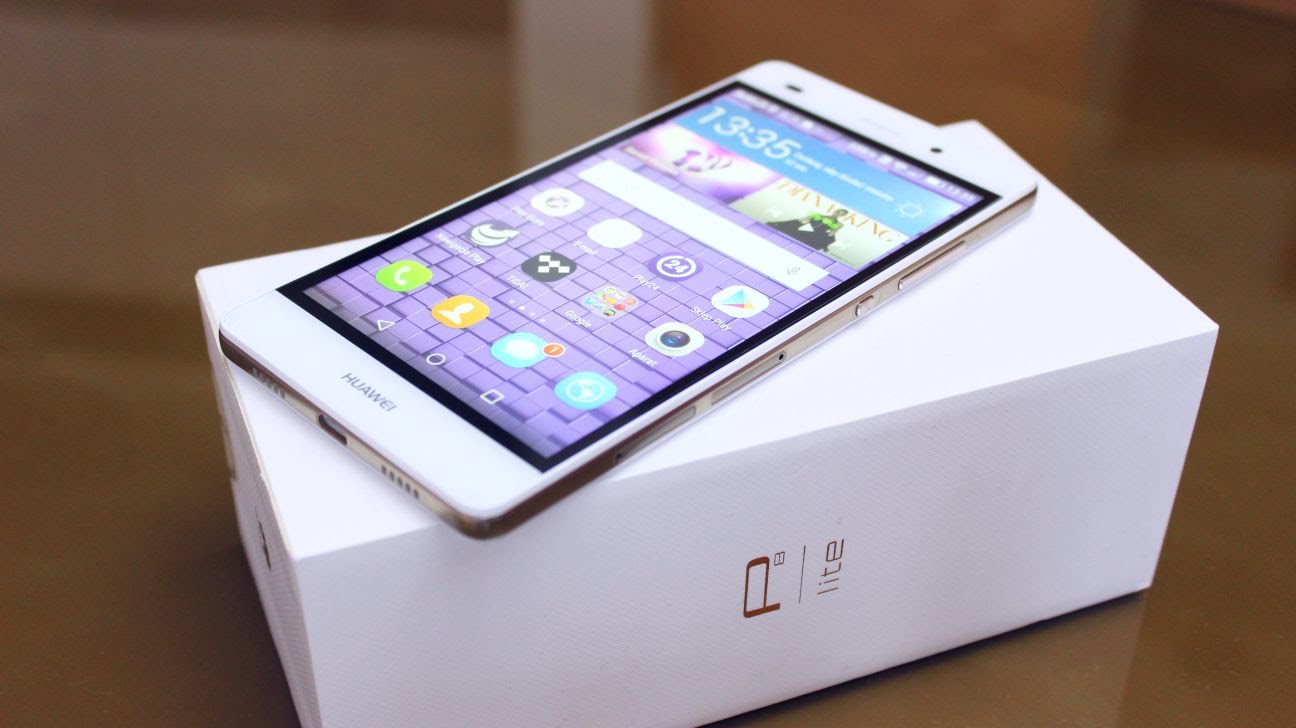
If you own a Huawei P8Lite running latest android 6.0 Marshmallow and you want to get root access on your device. Now you can easily Root Huawei P8 Lite With SuperSu v2.65 or above. But remember make sure your device’s bootloader is unlocked and you have a custom recovery (TWRP) Installed on your device. Then you can easily flash the latest SuperSu root file via recovery to get root access on your Huawei P8Lite
Now it is very simple and easy to root any Android 6.0 Marshmallow devices. Thanks to Chainfire’s auto boot patcher in SuperSu v2.65 and above, it’s very simple and easy to get root on most Marshmallow firmware from most manufacturers.
You can root almost all android 6.0 marshmallow devices (Stock Firmware) by just flashing the SuperSu v2.65 File.By Flashing This, you can easily Root Huawei P8 lite Android Marshmallow 6.0 Update
Warning: we will not be held responsible for any kind of damage occurred to your Huawei P8Lite while following this tutorial.Do it at your own risk.
Pre-Requirements:
- Huawei Mate P8Lite
- The bootloader must be unlocked.Guide > How To Unlock Bootloader On Huawei Devices
- Make sure you have TWRP Installed on your device
Downloads
- SuperSu v2.67 (download the V 2.67)
How To Root Huawei P8 lite Android Marshmallow 6.0 Update With SuperSu
STEP2- Boot your device into TWRP recovery.
STEP3- Tap on “Install” and select the SuperSU zip file that you transferred to your device in Step 1.
STEP4- After selecting the .zip file, do “Swipe to Confirm Flash” on the bottom of screen to begin the flashing process.
STEP5- Once SuperSU is flashed, you’ll get “Reboot System” option, select it.
Congratulations! Your device should be rooted now. Look for the SuperSU app in app drawer.
Available link for download
Friday, 23 December 2016
How to install Android Marshmallow on HTC One M8 via Blues custom ROM
How to install Android Marshmallow on HTC One M8 via Blues custom ROM
Custom ROM developer Blues has released the Android Marshmallow-based firmware to HTC One (M8).
HTC device owners who are bored with Sense UI and want to explore different interface on One M8 can try installing the Blues custom ROM.

Blues firmware offers visually appealing interface with coloured Navbar, network traffic monitor, performance tweaks and numerous other value-added features.
Prerequisites (things to remember before installing Custom ROM)
- Though installing custom ROM improves the devices performance and UI experiences, it makes the company warranty void; the company will no longer be liable to provide updates in future [users can restore warranty by flashing the device with stock-ROM].
- Make sure the device is rooted before going ahead with custom ROM installation.
- Installation of custom ROM requires clearing memory in the phone, so make sure to back all the data by installing Clockwork Mod (CWM) Recovery/TWRP in the smartphone.
- Make sure USB driver is installed in the PC or else your device (HTC One M8) will not be recognised by the computer.
- Make sure your device has more than 80% battery.
Disclaimer: droidupdatez cannot be held responsible for any damage or claims from readers if the procedure does not yield the required results or if the smartphone is bricked. Hence, users are advised to proceed with caution.
Step-by-step installation procedure of Blues Android Marshmallow custom ROM on HTC One M8:
Step 1: After downloading Blues Android Marshmallow custom ROM and Google Apps in to the PC, connect HTC One M8 to the Computer via USB cord
- HTC One (M8) Blues Android Marshmallow custom ROM: HERE
- Google Apps: HERE
[Note: Users are advised to paste the .zip file in SD card root, not in any other folder]
[Note: Before installing the custom software, be sure that the device must have been rooted and has installed ClockworkMod Recovery tool]
Step 3: Place boot.img file in the android-sdk-windowsplatform-tools directory
Step 4: Turn off the device and disconnect from the PC
Step 5: Perform the regular Bootloader mode sortie, by press holding Volume (down), and Power buttons
Step 6: After entering the Bootloader mode (on the phone), go to android-sdk-windowsplatform-tools (on the PC) and open Command prompt and type in: fastboot flash boot boot.img and press enter
(To enter Command prompt: Shift + right-click >> open command Prompt)
Step 7: Type: fastboot reboot and follow instructions displayed on the screen. Select BOOTLOADER option to enter Recovery Mode
Step 8: Once entering the Recovery mode, clear the phone memory, by choosing wipe data/factory reset
[Note: use Volume keys to navigate and power button to select options, while operating under Recovery Mode]
Step 9: Clear the cache memory by selecting wipe cache partition
Step 10: Return to the ClockworkMod recovery, and select advanced and tap wipe dalvik cache
[Note: This step is optional, but many recommend this procedure so that user will not face boot loops or any other errors in the middle of custom ROM installation]
Step 11: Navigate back to the main recovery screen and then tap install zip from SD card
Step 13: Tap choose zip from sdcard and go to Android 6.0 Marshmallow ROM .zip file in SD card and enter the installation process. Repeat the procedure for installing Google Apps
[Note: use Volume keys to navigate and Power button to select options]
Step 14: Once done with the installation process, navigate to +++++Go Back+++++ and re-start the device by opting reboot system now seen in the recovery menu
Now, your device (HTC One M8) will take at a few minutes to complete the booting process
Users then head to Settings >> select About phone to confirm the installation of Blues Android Marshmallow custom ROM
Available link for download
Sunday, 11 December 2016
Root HTC One M9 on Android 6 0 1 Marshmallow Update
Root HTC One M9 on Android 6 0 1 Marshmallow Update
HTC One M9 has been updated to the latest the Android 6.0.1 Marshmallow update. The Android 6.0.1 Marshmallow update may have reached most of the One M9 users. If you too have received the update, you may be looking at options to root the phone.

Popular Android developer Chainfire has updated SuperSU with all the changes required to work on Marshmallow devices.The latest version of SuperSU is v2.65 in the stable branch while the beta version is up to v2.71.
Once TWRP recovery has been installed and your phone has booted back into Android, it’s time to start the rooting process.
Download SuperSU 2.71 from the link above and transfer it to your phone.
Apart from that, you can also use RootChecker app to confirm if your One M9 has been rooted successfully.
Popular Android developer Chainfire has updated SuperSU with all the changes required to work on Marshmallow devices.The latest version of SuperSU is v2.65 in the stable branch while the beta version is up to v2.71.
Prerequisites
- SuperSU 2.71 (recommended) – Download here (or) SuperSU 2.65 – Download here
- TWRP 3.0.1-0 – Download here (You must installed TWRP recovery)
- ADB/Fastboot Installer – Download here
Root HTC One M9 Android 6.0.1 Marshmallow Update
Once TWRP recovery has been installed and your phone has booted back into Android, it’s time to start the rooting process.
Download SuperSU 2.71 from the link above and transfer it to your phone.
- Turn your One M9 off.
- Press and hold the Power and Volume Down buttons to boot into the bootloader.
- Now, use the volume rocker to highlight Recovery option. Press the Power button to confirm. This will boot your phone in TWRP recovery.
- In TWRP, click on Install and locate and select the SuperSU 2.71 zip file.
- Swipe to start flashing SuperSU 2.71.
Apart from that, you can also use RootChecker app to confirm if your One M9 has been rooted successfully.
Available link for download
Wednesday, 30 November 2016
Install TWRP Recovery on Galaxy S7 S7 Edge Marshmallow Firmware
Install TWRP Recovery on Galaxy S7 S7 Edge Marshmallow Firmware
If you have been looking for a custom recovery for your Samsung Galaxy S7 or S7 edge, look no further as the most popular recovery, TWRP has made its way into Samsung’s most popular phones. Even though it has been just a few days since the official release of the devices in stores all around the world, developers over at TWRP have already released TWRP.

With TWRP you can install custom ROMs, kernels and many things that you cannot do with a stock recovery. You can make a Nandroid backup before installing a new ROM and even restore it when you desire.
With TWRP you can install custom ROMs, kernels and many things that you cannot do with a stock recovery. You can make a Nandroid backup before installing a new ROM and even restore it when you desire.
How to Install TWRP 3.0.0 on Galaxy S7/S7 Edge Marshmallow
Download Install TWRP Files
- Download TWRP for Galaxy S7
Download | twrp-3.0.0.0_heroqtle.tar.md5 - Download TWRP for Galaxy S7 edge
Download | twrp-3.0.0-1-hero2lte.tar.md5 - Download Odin3 v3.10.7 to flash the recovery.
How to Install TWRP
Now, extract the Odin folder and launch the program. Move the TWRP file somewhere where you can remember it.
- On Odin, click on AP and select the TWRP recovery file.
- Take your phone, turn it off and go into download mode.
- Connect your phone to your PC via USB cable.
- Click Install on Odin.
Now, the recovery will shortly be installed. When the phone reboots, it means that the process has finished. Now you need to turn the phone off and press the volume up, home and power keys to go into recovery mode.
Available link for download
Moto G 2015 XT1072 Marshmallow 6 0 OTA Rolling Out Now How to Update
Moto G 2015 XT1072 Marshmallow 6 0 OTA Rolling Out Now How to Update
Moto G 2015 XT1072 model is finally receiving the Android 6.0 Marshmallow update with software version 24.41.34.en.EU.

The OTA update is 500MB in size and is already on the roll as we speak. If you haven’t received the update yet, go to Settings » About phone » Software updates and hit the Check button to manually check for the update.
The OTA update is 500MB in size and is already on the roll as we speak. If you haven’t received the update yet, go to Settings » About phone » Software updates and hit the Check button to manually check for the update.
How to Install Android Marshmallow 6.0 OTA on Motorola Moto G (XT1072):
If Moto G (XT1072) device series owners are getting the update notifications, then select - "Yes, Im in" option >> then, after downloading, select >> "Install now." The phone will restart automatically and the OS will be updated to the new version.
Until then, users can also check manually on the smartphone by going to – Settings >> About phone >> System update >> Check Now;
We like to remind out readers that the roll-out process is carried out in phases, so it will take some time to reach all corners of the country.
Available link for download
Tuesday, 29 November 2016
Download LG G5 Apps on LG G4 G3 and AOSP Marshmallow ROMs
Download LG G5 Apps on LG G4 G3 and AOSP Marshmallow ROMs
The G5 is the LG’s hot-piece for the year 2016 that would dominate the headlines. It’s widely anticipated device, and as such we thought you might find it cool to download the apps LG packed in with the G5, so here they are.

How To Install G5 Apps on LG G4, G3 and AOSP Marshmallow ROMs
This is for stock Android ROMs. Hence, this should work coolly on Nexus (and Motorola perhaps) devices running Android 6.0, and other devices running AOSP ROMs like CM13.
- LG Alarm Clock
- LG Calculator
- LG Calendar
- LG Contacts
- LG Dialer
- LG Email
- LG File Manager
- LG Gallery
- LG Music
- LG Music Widget
- LG QRemote
- LG Video
- LG Voice Recorder
? Download Link
Extract the zip file. You will get an APK file
Enjoy LG G5 Apps on your phone
How To Install G5 Launcher on LG G4, G3 and AOSP Marshmallow ROMs
This is LG G5 launcher, modded to work for LG G3. Uh, LG G3 only for now, so don’t try this on any other LG or other OEM’s device for now. We’re sure one for LG G4 and other popular LG sets will be available soon.
? Download Link
If you want to install the G3’s launcher back, find it here.
How to Install: Download the above file and install it using TWRP recovery. [Guide here]
Enjoy!
Available link for download
Sunday, 27 November 2016
Download Official CM13 for Honor 4 4X Marshmallow 6 0 ROM
Download Official CM13 for Honor 4 4X Marshmallow 6 0 ROM
The Cyanogenmod Team has just released CM13 Nightlies for the Huawei Honor 4 and 4X phones. The Cyanogenmod 13 Nigtlies are stable ROMs and don’t come with any issue or lags.

The ROM is based on Androdi 6.0 Marshmallow and It aims to bring all Marshmallow apps and features on your Huawei Honor 4 or 4X. This is not an official update from Huawei but just a custom ROM which means that the warranty of your phone will void.
As this the first Cm13 nightly of Honor 4/4X there may be some bugs but dont worry it should be fixed in next nightly.so we request you to test it out and report in the comment section.As this is first cm13 nightly there may be bugs in it I refer you to make the backup of your current rom.Lets start the guide on How to install Official Cm13 rom on Honor 4/4X
The ROM is based on Androdi 6.0 Marshmallow and It aims to bring all Marshmallow apps and features on your Huawei Honor 4 or 4X. This is not an official update from Huawei but just a custom ROM which means that the warranty of your phone will void.
As this the first Cm13 nightly of Honor 4/4X there may be some bugs but dont worry it should be fixed in next nightly.so we request you to test it out and report in the comment section.As this is first cm13 nightly there may be bugs in it I refer you to make the backup of your current rom.Lets start the guide on How to install Official Cm13 rom on Honor 4/4X
Download
[lock]1. Download Cyanogenmod 13 rom for Honor 4/4X [Cherry][/lock]
Download both the ROM and Gapps on your computer and then transfer them to the internal storage of your Honor 4/4X .
Installation guide for here
Download both the ROM and Gapps on your computer and then transfer them to the internal storage of your Honor 4/4X .
Installation guide for here
Available link for download
Downgrading SM 910F from marshmallow to lollipop
Downgrading SM 910F from marshmallow to lollipop
Hi guz,
I want to downgrade my NOTE 4 from 6.0.1 to 5.1.1. I googled it and did show one of the thread on this forum using ODIN method for that. My problem is to find the correct firmware version for note 4.
My device info is given below
Model Number: SM-N910F
Baseband version: N910FXXU1DPB1
Build Number: MMB29M.N910FXXU1DPE1
Please help me on finding the correct firmware or suggest me on identifying the possible versions.
Thank you.
I want to downgrade my NOTE 4 from 6.0.1 to 5.1.1. I googled it and did show one of the thread on this forum using ODIN method for that. My problem is to find the correct firmware version for note 4.
My device info is given below
Model Number: SM-N910F
Baseband version: N910FXXU1DPB1
Build Number: MMB29M.N910FXXU1DPE1
Please help me on finding the correct firmware or suggest me on identifying the possible versions.
Thank you.
from xda-developers http://ift.tt/29Vsc0i
via IFTTT
Available link for download
Saturday, 12 November 2016
How to Install Marshmallow on Galaxy Note 5 N920W8 N920P R4
How to Install Marshmallow on Galaxy Note 5 N920W8 N920P R4
The official Android 6.0.1 Marshmallow TouchWiz firmware from Samsung is now available for the Canadian and US cellular variants.

Now the update has come to Canada and for some of the US carriers like Sprint Note 5 N920P, US cellular SM-N920R4, etc. The latest to the adition are the SM-N920W8 Bell-Mobile, Telus, Virgin Mobile and more.
Marshmallow for Galaxy Note 5 SM-N920W8 (Telus)
? Download [Mirror] | File: N920W8VLU2BPC5_N920W8OYA2BPC5_TLS.zip Galaxy Note 5 N920R4 Variant ? Link Sprint Galaxy Note 5 N920P ? Link Odin Software
? Download [Mirror] | File: Odin3_v3.10.7_3.zip Samsung Galaxy Drivers
? Download | File: SAMSUNG_USB_Driver_for_Mobile_Phones.zip (15.3MB)
2. Enable USB Debugging on your device. To do so, go to Settings>About Phone> Tap on the Build Number several times until you get a new Developer Options in the Settings. Open Developer Options and enable USB Debugging from there. Trust the connection by allowing it when you connect it to your PC for the first time.
3. Make sure you have latest device drivers setup on your PC for a better connection. Get it from the download section official from the manufacturer.
4. Backup everything before you proceed. Odin performs a clean install, that you will lose apps, data, media, etc.
Step 2: Now boot your device into Download/Odin Mode. To do so, turn off your device completely and then press and hold Power button + Volume Down + Home keys for a few seconds. If you see a warning sign press Volume up/ Volume down to get the Odin screen.
Step 3: If you already have Odin software on your PC then simply run the Odin3_3.10.7.exe file. If not, then download the Odin3.zip file from the download section and extract it. Run Odin software as administrator.
Step 4: While your device is still in the Odin Mode, connect your device to your PC using a USB cable.
Step 5: After a successful connection, the ID: COM in the Odin should turn Blue and an Added!! message should be displayed in the Log tab. In case your device doesn’t show up in Odin, then you can troubleshoot it with the steps given at the end of the tutorial.
Step 6: Now click on AP button and add the firmware file by navigating to the file path. Once added, it should show like this — File PathN920W8VLU2BPC5_N920W8OYA2BPC5_TLS.tar.md5
Step 7: Take care that only Auto Reboot and F.Reset Time are selected in the Options tab. Do not check Re-Partition.
Step 8: Once done, verify everything and proceed with installation by selecting Start button.
Step 9: When you get a PASS! message in the Log tab on your Odin software, that means firmware has successfully been installed and the device will restart itself. If not then reboot manually.
Be patient as first reboot may take a while. When you see the boot animation, that means you have successfully flashed the firmware. Enjoy your new TouchWiz ROM. Follow and like us on social media. For queries comment down below
Now the update has come to Canada and for some of the US carriers like Sprint Note 5 N920P, US cellular SM-N920R4, etc. The latest to the adition are the SM-N920W8 Bell-Mobile, Telus, Virgin Mobile and more.
Download Marshmallow For Note 5
? Download [Mirror] | File: N920W8VLU2BPC5_N920W8OYA2BPC5_TLS.zip
? Download [Mirror] | File: Odin3_v3.10.7_3.zip
? Download | File: SAMSUNG_USB_Driver_for_Mobile_Phones.zip (15.3MB)
Warning: Although going through this procedure should not cause harm or any damage to your device, it remains an unofficial process and you should be cautious about it. Reader’s discretion is advised.
Prerequisites
1. Verify your device for compatibility. Check out the download section. For other variants,2. Enable USB Debugging on your device. To do so, go to Settings>About Phone> Tap on the Build Number several times until you get a new Developer Options in the Settings. Open Developer Options and enable USB Debugging from there. Trust the connection by allowing it when you connect it to your PC for the first time.
3. Make sure you have latest device drivers setup on your PC for a better connection. Get it from the download section official from the manufacturer.
4. Backup everything before you proceed. Odin performs a clean install, that you will lose apps, data, media, etc.
How to Install Marshmallow on Galaxy Note 5 N920W8 N920P/R4
Step 1: Download the listed firmware for your for your Galaxy device. Extract the zip file to get the firmware with .tar or .tar.md5 extension and place at a location where you can easily locate it in your PC.Step 2: Now boot your device into Download/Odin Mode. To do so, turn off your device completely and then press and hold Power button + Volume Down + Home keys for a few seconds. If you see a warning sign press Volume up/ Volume down to get the Odin screen.
Step 3: If you already have Odin software on your PC then simply run the Odin3_3.10.7.exe file. If not, then download the Odin3.zip file from the download section and extract it. Run Odin software as administrator.
Step 4: While your device is still in the Odin Mode, connect your device to your PC using a USB cable.
Step 5: After a successful connection, the ID: COM in the Odin should turn Blue and an Added!! message should be displayed in the Log tab. In case your device doesn’t show up in Odin, then you can troubleshoot it with the steps given at the end of the tutorial.
Step 6: Now click on AP button and add the firmware file by navigating to the file path. Once added, it should show like this — File PathN920W8VLU2BPC5_N920W8OYA2BPC5_TLS.tar.md5
Step 7: Take care that only Auto Reboot and F.Reset Time are selected in the Options tab. Do not check Re-Partition.
Step 8: Once done, verify everything and proceed with installation by selecting Start button.
Step 9: When you get a PASS! message in the Log tab on your Odin software, that means firmware has successfully been installed and the device will restart itself. If not then reboot manually.
Be patient as first reboot may take a while. When you see the boot animation, that means you have successfully flashed the firmware. Enjoy your new TouchWiz ROM. Follow and like us on social media. For queries comment down below
Available link for download
Sunday, 6 November 2016
Install Official Huawei P8 B317 Android 6 0 Marshmallow Update
Install Official Huawei P8 B317 Android 6 0 Marshmallow Update
In this guide, you will learn How to Download & Flash / Install Huawei P8 Official Marshmallow Update.This is the latest Android 6.0 Marshmallow update from Huawei.Here we will be sharing the direct link to download the marshmallow update Zip file and steps to install it on your Huawei Ascend P8.
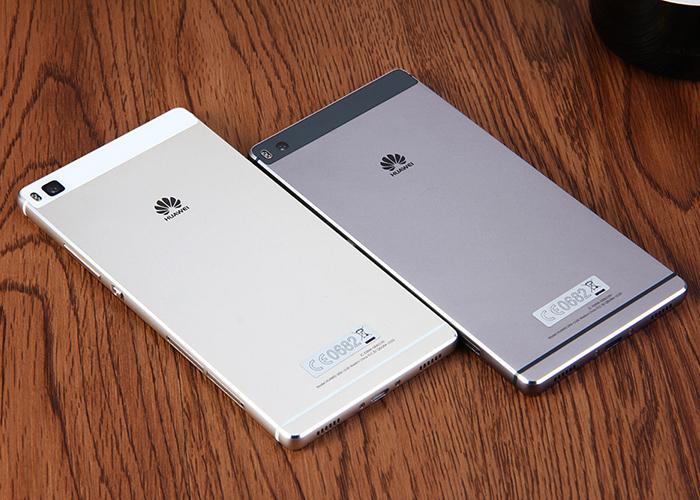
[lock]The update comes to the GRA-L09 (Europe) variant and it will take your P8 to firmware version GRA-L09_C432B317. So hit the download section below to grab the latest update. We have also listed a simple tutorial to update your phone which goes well with almost all Huawei devices; provided you have the correct update file. This is for Spain and the update is rolling out regionally.
Firmware Details:
- Device: Huawei P8
- Model: GRA-L09
- Android: v6.0 Marshmallow
- EMUI: 4.0
- Firmware: B317
- Build: GRA-L09C432B317
- Region: Europe
- Country: Spain
- Status: Official (stable)
- Release Date: 19-02-2016
- File Name: GRA-L09_C432B317_Firmware_Europe_Android6.0_EMUI4.0.zip
Download OTA for Huawei P8
Final EMUI 4.0 B317 OTA for Huawei P8 GRA-L09
? Download | OTA C432B317 File: update.zip (434.4 MB)
Official full stock firmware for Huawei P8 GRA-L09
? Download | File: GRA-L09_C432B317_Firmware_Europe_Android6.0_EMUI4.0.zip [1.46 GB]
More firmware files for Huawei P8 and P8 Lite ? Visit
[/lock]
How to Install Official Huawei P8 B317 Android 6.0 Marshmallow Update
Step 1. First, check your firmware version. If you already have the latest one, you don’t need to update.
Step 2. Backup is highly recommended. Backup all your personal stuff like data, apps, media, storage files and fully charge the battery.
Step 3. Download Android 6.0 Marshmallow OTA file from above for your Huawei P8 Lite. You need to be on the B188 base firmware. Hence, first install B170 and then update to B188 as follows.
Step 4. Rename the downloaded file to update.zip for convenience. (.zip extension is important)
Step 5. Now create a folder named dload in the root of your internal storage or on your SD card. Now place the update.zip file here.
Step 6. Go to settings>update and hit the menu button and then choose Local update.
Step 7. If you have copied the update.zip file correctly, then you will find it on the select menu. Tap on it and start installation
Step 8. Wait until the update is applied.
That’s it. Reboot and enjoy your latest marshmallow ROM. Alternatively, you can flash the firmware files using ADB sideload method.
Available link for download
Download Marshmallow 6 0 CyanogenMod 13 Nightly for Oppo N3
Download Marshmallow 6 0 CyanogenMod 13 Nightly for Oppo N3
Oppo has released Android lollipop update for N3 but has declared that users won’t get a marshmallow update but don’t worry there is another way to Update Oppo N3 to Marshmallow.

You can have Android marshmallow 6.0 on your phone by flashing CM13 custom ROM on it, the process is a bit risky but result is fruitful. Now it’s up to you guys whether you want to run marshmallow on your device or stay contented with lollipop firmware.
You can install Marshmallow CM13 on Oppo N3 and also it is an improved version of other roms installed in Oppo smartphones. So if you are willing to update Oppo N3 to Marshmallow 6.0 Cm13 rom then follow this guide.
Installation guide for Oppo N3 click here
You can have Android marshmallow 6.0 on your phone by flashing CM13 custom ROM on it, the process is a bit risky but result is fruitful. Now it’s up to you guys whether you want to run marshmallow on your device or stay contented with lollipop firmware.
You can install Marshmallow CM13 on Oppo N3 and also it is an improved version of other roms installed in Oppo smartphones. So if you are willing to update Oppo N3 to Marshmallow 6.0 Cm13 rom then follow this guide.
Download these files
- Download: CM13 Oppo N3 firmware.zip
- Download: Google Apps.zip
Installation guide for Oppo N3 click here
Available link for download
Tuesday, 1 November 2016
Lg g3 at t d850 marshmallow hotspot not working
Lg g3 at t d850 marshmallow hotspot not working
Lg g3 at&t d850 marshmallow hotspot not working
I have a problem in my lg g3 d850 marshmallow hotspot tether not working i have tried old tips n tricks through google but couldnt find a best solution please help me out to work hotspot its blocked by at&t
I have a problem in my lg g3 d850 marshmallow hotspot tether not working i have tried old tips n tricks through google but couldnt find a best solution please help me out to work hotspot its blocked by at&t
from xda-developers http://ift.tt/2aii0BE
via IFTTT
Available link for download
Sunday, 30 October 2016
How to Root LG G3 D855 on Marshmallow 6 0
How to Root LG G3 D855 on Marshmallow 6 0
Lg G3 has officially received Android 6.0 Update . Marshmallow is the latest Android version with bunch of new features and better performance. Lg always keeps on updating its Flagships to latest Android version. Here in the succeeding article we will show you proper method to root your Lg G3.

We will use ADB and Fastboot method to root LG G3 D855 on Marshmallow 6.0 firmware. So, you should know how to use and set up ADB and Fastboot.
Disclaimer: This method is only for LG G3 D855. Do not try this on any other model. This method is recommended for advance users only not for beginners. If some thing happens with your device then droidupdatez should not be held responsible. So, try this at your own risk only. Rooting is an unofficial process.
We will use ADB and Fastboot method to root LG G3 D855 on Marshmallow 6.0 firmware. So, you should know how to use and set up ADB and Fastboot.
Disclaimer: This method is only for LG G3 D855. Do not try this on any other model. This method is recommended for advance users only not for beginners. If some thing happens with your device then droidupdatez should not be held responsible. So, try this at your own risk only. Rooting is an unofficial process.
Root LG G3 D855 on Marshmallow 6.0
Now using Android 6.0 Marshmallow on G3 so rooting your Lg G3 is very easy. Follow the instructions, first of all you will need to download these files
[ads-post]
[ads-post]
1. Latest TWRP
2. SuperSU 2.65 Beta
2. SuperSU 2.65 Beta
Extract the TWRP recovery but not the Super Su file.
Step-1 Install TWRP
Unzip the TWRP and and copy recovery.img it to the internal storage. After doing that type the following commands and make sure that ADB server is running on your computer.
adb shell
Su
dd if=/dev/zero/ of=/dev/block/platfor
dd if=/sdcard/recovery.img of=/dev/BL
exit
exit
Adb reboot recovery
Now after installing TWRP on your LG G3 the second step is to install SuperSU 2.65 to root your LG G3 .
Step-2 Installing SuperSU 2.65
Move the Super SU .zip file that ypu downloaded earlier to your phone storage and follow the steps
- To install SuperSU Complete switch off your LG G3 wait for vibration.
- Now press and hold volume down+power button. Soon Lg logo will appear, now release the buttons and again hold the same buttons. Now you are in TWRP.
- Tap install here and select the SuperSU 2.65 beta zip which you had recently copied to SD card and tap install button.
- Wait for the installation to complete, when done reboot your LG G3. You will see Super user app in app drawer.
Congrats you have successfully rooted your LG G5 on Marshmallow. Hope you like our tutorial to Root LG G3 D855 on Marshmallow 6.0. If you have any questions then ask in the comments section below. Please share it and subscribe to our blog. Sharing buttons are below and subscription box is at the end.
Available link for download
Tuesday, 25 October 2016
How to Download Android 6 0 1 Marshmallow CyanogenMod 13 for Huawei Ascend G620S
How to Download Android 6 0 1 Marshmallow CyanogenMod 13 for Huawei Ascend G620S
Today we are going to learn how to install CyanogenMod 13.0 Android 6.0 Marshmallow on Huawei Ascend G620S. We have done a step by step guide so even if you haven’t installed a ROM before and don’t know anything from ROMs and how they work, you be able to do it. Without further ado let’s jump into the guide how update Huawei Ascend G620S to Android 6.0.1 Marshmallow using CM 13.
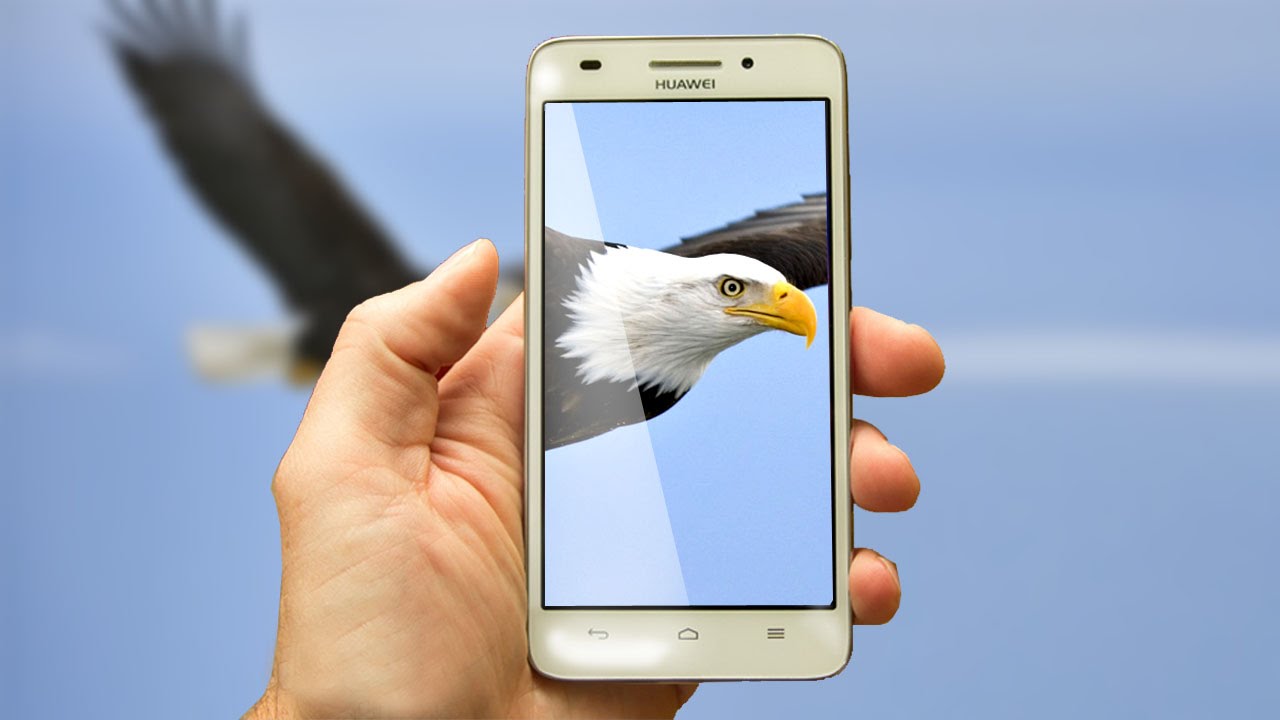
Warning: We shall not held any kind of responsibility for troubles you may experience on your phone. This is not an official ROM but it is tested and works fine except NFC. The developer says it will be fixed soon. However according to users who have tried this ROM it works fine. I don’t think NFC is a feature you use in daily life.
preparations
- First of all CM 13 Android 6.0 Marshmallow you are going to find here is only for Huawei Ascend G620S. To check you phone version go to Settings > About Device. There you can find all the information about your device.
- You should have TWRP v2.8.6.0 installed on your phone. It will be needed to flash and wipe everything and than install the ROM.
- If you have installed TWRP we recommend you to do a Nandroid backup. It’s easy and you will have your phone files and data saved somewhere else and you can easily restore them.
- Charge your phone at least to 60% so you will be sure it won’t shut down unexpectedly during the ROM installation. Otherwise you may end in soft bricking your device.
Downloads
- CyanogenMod (CM) 13 Android 6.0 Marshmallow for Huawei Ascend G620S
- Google Apps for Marshmallow.
How to install CyanogenMod (CM 13) Android 6.0 MArshmallow on Huawei Ascend G620S
- Take your phone and press the power button to turn it off.
- Using the proper key combination boot your phone into recovery.
- Perform a Nandroid backup and then go back to Recovery main menu.
- Wipe everything, Cache, Data, Dalvik Cache and System.
- Navigate to install and flash the CM 13 ROM.
- Wait for the ROM being installed and go back to main menu.
- Flash Android 6.0 Gapps.
- Wipe Cache and Dalvik and then reboot your phone.
The first boot may take more than usually because the phone needs to configure the files for fisrt time use. Usually it won’t take more than a couple of minutes. Once it’s turned on your Huawei Ascend will be running Android 6.0.1 Marshmallow
Available link for download
Monday, 24 October 2016
Download Lenovo K4 Note Marshmallow 6 0 Update Official
Download Lenovo K4 Note Marshmallow 6 0 Update Official
Lenovo announced on Wednesday that it has started rolling out the latest Android 6.0 Marshmallow update for its popular K4 Note smartphone in India. The software update is being pushed out in a phased manner, which means not all users will receive the update at once but over a span of the next few days.

Lenovo K4 Note Marshmallow 6.0 Update can be downloaded and installed very easily on your smartphone. Lenovo has officially not yet disclosed the date of release for Android M for Lenovo K4 Note for Indian users but we have got our hands on it already from Thailand forums which was officially released and we would be glad to share and let you experience the new operating system for your device. This release is official and might contain bug which can be fixed later by the lenovo team, but so far after using it we haven’t found any bugs but the speed and performance on android marshmallow on Lenovo K4 Note has increased immensely.
Lenovo K4 Note Marshmallow 6.0 Update
Pre-Requisites
- Drivers – Driver_Windows_MTK_Preloader_Techolite.zip
- Lenovo K4 Note Marshmallow 6.0 Stock Rom – here (rename it to update.zip)
- Keep your smartphone’s battery charged upto 70%
- Enable USB Debugging on your smartphone by going to Settings > About > Tap Build Number 10 times until you get the “Developer Mode Enabled” message. After that go back and open Developer Options from Settings and tick “USB Debugging”
How To Upgrade To Marshmallow 6.0 On Lenovo K4 Note
1) To manually check the update, you can head over to Settings > About phone > System updates > Check For Update.
2) To Update Lenovo K4 Note to Marshmallow manually follow below steps.
3) Download the Official Marshmallow ROM for Lenovo K4 Note from above.
4) Now save the file to SD card and rename it to ‘Update.zip‘
5) Now Power off your device.
6) Boot your phone into the recovery mode by pressing ‘Power + Volume up + Volume Down‘.
7) Now click on ‘Install Upgrade Package‘ and Select ‘Update.zip‘
8) Now wait for some time until the installation process complete.
9) Your phone will reboot and upgraded Marshmallow.
This is the easiest way to Update Lenovo K4 Note to Marshmallow manually. If you have any questions, comment below.
Available link for download
Thursday, 20 October 2016
How to Install OnePlus One Android Marshmallow update Dirty Unicorns custom ROM
How to Install OnePlus One Android Marshmallow update Dirty Unicorns custom ROM
Dirty Unicorns has released a new Android Marshmallow-based firmware to the 2014 flagship smartphone OnePlus One. OnePlus One owners who are tired to wait for the official update can try installing the Dirty Unicorns new Android Marshmallow custom ROM. It is around 282MB in size and brings Doze power saving feature, new "Now on Tap" search feature, new international language, performance tweaks and numerous value-added features to enhance user-experience on OnePlus One.
Step 3: Place Android Marshmallow custom ROM zip file and the Google Apps .zip file into the phones storage memory.
[Note: Users are advised to paste the .zip file in the storage root folder, not in any other folder.]
[Note: Before users begin installing the custom software, be sure that the device must have rooted and has installed ClockworkMod Recovery/TWRP tool.]
Step 4: Turn off the device and disconnect from the PC.
Step 5: Perform the regular Recovery Mode sortie by press holding Volume (Down) and Power buttons.
Step 6: After entering the RECOVERY mode, clear the phone memory, by selecting wipe data/factory reset
[Note: use Volume keys to navigate and Power button to select options, while operating under Recovery Mode]
Step 7: Clear the cache memory by choosing wipe cache partition
Step 8: Navigate back to ClockworkMod recovery, and select advanced and tap wipe dalvik cache
[Note: This step is optional, but many recommend this procedure so that user will not face boot loops or any other errors in the middle of custom ROM installation]
Step 9: Return to the main recovery screen and then tap install zip from SD card
Step 10: Tap choose zip from sdcard and go to Android M ROM .zip file in SD card and enter the installation process. Repeat the same procedure to install Google Apps [Note: use Volume keys to navigate and Power button to select options]
Step 11: Once done with the installation process, navigate to +++++Go Back+++++ and re-start the device by opting reboot system now seen in the recovery menu.
Now, your device (OnePlus One) will take a few minutes to complete the booting process.
Users then head to Settings >> select About phone to confirm the installation of Dirty Unicorns Android 6.0.1 Marshmallow custom ROM.
Prerequisites:
- Backup any important data from your OnePlus One as a complete wipe will be required during the flashing process.
- Enable USB debugging option on your device: Settings > Development Options > USB debugging.
- Samsung Galaxy A3 must be rooted, unlocked and installed with a recovery tool like TWRP or CWM.
- Your device must be charged to at least 60% of power.
Note: this tutorial is focused on OnePlus One; please do not try this guide on other Android devices.
Disclaimer: Droidupdatez cannot be held responsible for any damage or claims from readers if the procedure does not yield the required results or if the smartphone is bricked. Hence, users are advised to proceed with caution.
Installation Guide for Android 6.0 Marshmallow custom ROM on OnePlus One:
Step 1: Download Dirty Unicorns Android 6.0.1 Marshmallow custom ROM and Google Apps on to your PC.Downloadable files:
[lock] · OnePlus One Dirty Unicorns Android 6.0.1 Marshmallow custom ROM: HERE
· Google Apps:HERE
· USB driver: HERE
[/lock] Step 2: Connect OnePlus One to PC via USB cord.
Step 3: Place Android Marshmallow custom ROM zip file and the Google Apps .zip file into the phones storage memory.
[Note: Users are advised to paste the .zip file in the storage root folder, not in any other folder.]
[Note: Before users begin installing the custom software, be sure that the device must have rooted and has installed ClockworkMod Recovery/TWRP tool.]
Step 4: Turn off the device and disconnect from the PC.
Step 5: Perform the regular Recovery Mode sortie by press holding Volume (Down) and Power buttons.
Step 6: After entering the RECOVERY mode, clear the phone memory, by selecting wipe data/factory reset
[Note: use Volume keys to navigate and Power button to select options, while operating under Recovery Mode]
Step 7: Clear the cache memory by choosing wipe cache partition
Step 8: Navigate back to ClockworkMod recovery, and select advanced and tap wipe dalvik cache
[Note: This step is optional, but many recommend this procedure so that user will not face boot loops or any other errors in the middle of custom ROM installation]
Step 9: Return to the main recovery screen and then tap install zip from SD card
Step 10: Tap choose zip from sdcard and go to Android M ROM .zip file in SD card and enter the installation process. Repeat the same procedure to install Google Apps [Note: use Volume keys to navigate and Power button to select options]
Step 11: Once done with the installation process, navigate to +++++Go Back+++++ and re-start the device by opting reboot system now seen in the recovery menu.
Now, your device (OnePlus One) will take a few minutes to complete the booting process.
Users then head to Settings >> select About phone to confirm the installation of Dirty Unicorns Android 6.0.1 Marshmallow custom ROM.
Available link for download
Sunday, 16 October 2016
How to Install Oxygen OS 3 0 2 Marshmallow Update on OnePlus 2 Using Stock Recovery
How to Install Oxygen OS 3 0 2 Marshmallow Update on OnePlus 2 Using Stock Recovery
OnePlus Community is now rolling out the official Oxygen OS 3.0.2 build for the public. The manufacturer promised another update to the OnePlus 2 device for its community build Oxygen OS 3.0.1 that was released a couple of weeks ago.

This new update brings many new features, software tweaks, stability improvements and of course, the latest Android 6.0.1 Marshmallow firmware upgrade. Improvements to the camera, audio, user interface and some system-wide stability have been brought with this update. OnePlus development team has also promised that the OTA will be available and start hitting the devices all across the globe in the next 48 hours.
This new update brings many new features, software tweaks, stability improvements and of course, the latest Android 6.0.1 Marshmallow firmware upgrade. Improvements to the camera, audio, user interface and some system-wide stability have been brought with this update. OnePlus development team has also promised that the OTA will be available and start hitting the devices all across the globe in the next 48 hours.
Download Official Oxygen OS 3.0.2 For OnePlus 3
- OnePlus 2 Oxygen 3.0.2 OTA ? Direct Download | Mirror1 | Mirror2
- OnePlus 2 Oxygen 3.0.2 Full Firmware zip Files ? Download
How to Install Oxygen OS 3.0.2 on Oneplus 2 Device and Update to Android 6.0.1 Marshmallow
Step 1. Before you proceed, make sure you have installed the base update prior to v 3.0. That means make sure you have Oxygen OS v2.2.0 or higher as you current firmware version.
Step 2. Now download the Oxygen OS 3.0 update zip file from the downloads and transfer it to your phone’s internal storage.
Step 3. Now boot your OnePlus 2 into Recovery Mode. To do so, turn off your device completely and then press and hold the power button and volume down key for a few seconds. Select Recovery if an option is available to get into stock recovery mode.
Step 4. Once into the Stock Recovery Mode, Select Apply Updates from phone’s storage and then navigate to the OTA zip file and select it.
Step 5. Confirm the operation and the installation process will begin updating your OnePlus 2. This may take a few minutes.
Step 6. When the installation completes, it will automatically reboot. If not, go back and reboot manually.
Step 2. Now download the Oxygen OS 3.0 update zip file from the downloads and transfer it to your phone’s internal storage.
Step 3. Now boot your OnePlus 2 into Recovery Mode. To do so, turn off your device completely and then press and hold the power button and volume down key for a few seconds. Select Recovery if an option is available to get into stock recovery mode.
Step 4. Once into the Stock Recovery Mode, Select Apply Updates from phone’s storage and then navigate to the OTA zip file and select it.
Step 5. Confirm the operation and the installation process will begin updating your OnePlus 2. This may take a few minutes.
Step 6. When the installation completes, it will automatically reboot. If not, go back and reboot manually.
Available link for download
Friday, 14 October 2016
Lenevo Vibe Z2 Pro Marshmallow Update via CyanogenMod 13
Lenevo Vibe Z2 Pro Marshmallow Update via CyanogenMod 13
Now users of Lenevo Vibe Z2 pro can enjoy the latest Marshmallow Update in their smartphone by installing the unofficial build CM13 rom which is custom rom based on android marshmallow 6.0 . Installation of Cm13 rom in Lenevo Vibe Z2 pro is very safe and users can easily update the Lenevo Vibe Z2 pro to marshmallow android 6.0 using this Rom

Installation guide for here
This rom is not yet official that means it is not developed by offcial team cyanogenmod rather it is developed by senior xda member frantisheq. So much thanks to him for this update. As this is an unofficial rom so there are chances to have some minor bugs and to check or report the bugs in this rom check out the Official xda forum of this rom developement .
So lets follow with the complete process of Lenevo Vibe Z2 pro marshmallow Update by cm13 Rom. The process is very easy and you will get the complete features of marshmallow with this Rom.Please check out the Requirements section carefully and then move ahead with the installation process.The download links for the Rom and Gapps pckage is given below:
Download Links
[lock]
Download both the ROM and Gapps on your computer and then transfer them to the internal storage of your Lenevo Vibe Z2.
- Cm13 Rom for Lenevo Vibe Z2 Pro [ Marshmallow 6.0 ]
- Gapps package
Download both the ROM and Gapps on your computer and then transfer them to the internal storage of your Lenevo Vibe Z2.
Installation guide for here
Available link for download
Wednesday, 5 October 2016
How to Update Honor 5X to Marshmallow Manually
How to Update Honor 5X to Marshmallow Manually
The latest to tease an upcoming update is the Honor 5X from Huawei. Now you can download and Update Honor 5X to Marshmallow Manually. This update is based on EMUI 4.0 and contains all Android 6.0 Marshmallow features. The update is not available via OTA so you have to Update Honor 5X to Marshmallow Manually. To Update Honor 5X to Marshmallow manually first download honor 5x marshmallow ota zip from below.

The new Marshmallow update packed with features like Now on Tap, Doze Mode, App Permissions and more. Also, get some device specific changes like New EMUI 4.0. The Android 6.0 Marshmallow update for Huawei Honor 5X is available for download and it is about 1.16GB in size.
2) Now create a folder dload in the root of your internal storage or SD card and place the update.app file in that folder.
3) Now go to the phone settings–>update and press the menu button.
4) Now select choose Local update.
5) It will detect the update.app and installation process will start.
6) Wait until the installation process is complete and then reboot your device., you have latest firmware
7) Done.
This is the easiest way to Update Honor 5X to Marshmallow manually. If you have any questions, comment below.
The new Marshmallow update packed with features like Now on Tap, Doze Mode, App Permissions and more. Also, get some device specific changes like New EMUI 4.0. The Android 6.0 Marshmallow update for Huawei Honor 5X is available for download and it is about 1.16GB in size.
Preq:-
- Your device must be on stock firmware and stock recovery.
- This update is only for Huawei Honor 5X KII-l21.
- Follow the steps correctly otherwise you may brick your device. We are not responsible for any damage to your phone.
- It will not erase your data, but it is advisable to take a complete backup of your phone for safer side.
- Ensure that your phone has at least 50-60% charged to prevent the accidental shutdown in-between the process.
Download Official Android 6.0 for Huawei Honor 5X –
- Marshmallow for Honor 5X KII-l21– Download
Update Honor 5X to Marshmallow –
1) First, download Android 6.0 for Honor 5X from above.2) Now create a folder dload in the root of your internal storage or SD card and place the update.app file in that folder.
3) Now go to the phone settings–>update and press the menu button.
4) Now select choose Local update.
5) It will detect the update.app and installation process will start.
6) Wait until the installation process is complete and then reboot your device., you have latest firmware
7) Done.
This is the easiest way to Update Honor 5X to Marshmallow manually. If you have any questions, comment below.
Available link for download
Subscribe to:
Posts (Atom)