Showing posts with label custom. Show all posts
Showing posts with label custom. Show all posts
Friday, 23 December 2016
How to install Android Marshmallow on HTC One M8 via Blues custom ROM
How to install Android Marshmallow on HTC One M8 via Blues custom ROM
Custom ROM developer Blues has released the Android Marshmallow-based firmware to HTC One (M8).
HTC device owners who are bored with Sense UI and want to explore different interface on One M8 can try installing the Blues custom ROM.

Blues firmware offers visually appealing interface with coloured Navbar, network traffic monitor, performance tweaks and numerous other value-added features.
Prerequisites (things to remember before installing Custom ROM)
- Though installing custom ROM improves the devices performance and UI experiences, it makes the company warranty void; the company will no longer be liable to provide updates in future [users can restore warranty by flashing the device with stock-ROM].
- Make sure the device is rooted before going ahead with custom ROM installation.
- Installation of custom ROM requires clearing memory in the phone, so make sure to back all the data by installing Clockwork Mod (CWM) Recovery/TWRP in the smartphone.
- Make sure USB driver is installed in the PC or else your device (HTC One M8) will not be recognised by the computer.
- Make sure your device has more than 80% battery.
Disclaimer: droidupdatez cannot be held responsible for any damage or claims from readers if the procedure does not yield the required results or if the smartphone is bricked. Hence, users are advised to proceed with caution.
Step-by-step installation procedure of Blues Android Marshmallow custom ROM on HTC One M8:
Step 1: After downloading Blues Android Marshmallow custom ROM and Google Apps in to the PC, connect HTC One M8 to the Computer via USB cord
- HTC One (M8) Blues Android Marshmallow custom ROM: HERE
- Google Apps: HERE
[Note: Users are advised to paste the .zip file in SD card root, not in any other folder]
[Note: Before installing the custom software, be sure that the device must have been rooted and has installed ClockworkMod Recovery tool]
Step 3: Place boot.img file in the android-sdk-windowsplatform-tools directory
Step 4: Turn off the device and disconnect from the PC
Step 5: Perform the regular Bootloader mode sortie, by press holding Volume (down), and Power buttons
Step 6: After entering the Bootloader mode (on the phone), go to android-sdk-windowsplatform-tools (on the PC) and open Command prompt and type in: fastboot flash boot boot.img and press enter
(To enter Command prompt: Shift + right-click >> open command Prompt)
Step 7: Type: fastboot reboot and follow instructions displayed on the screen. Select BOOTLOADER option to enter Recovery Mode
Step 8: Once entering the Recovery mode, clear the phone memory, by choosing wipe data/factory reset
[Note: use Volume keys to navigate and power button to select options, while operating under Recovery Mode]
Step 9: Clear the cache memory by selecting wipe cache partition
Step 10: Return to the ClockworkMod recovery, and select advanced and tap wipe dalvik cache
[Note: This step is optional, but many recommend this procedure so that user will not face boot loops or any other errors in the middle of custom ROM installation]
Step 11: Navigate back to the main recovery screen and then tap install zip from SD card
Step 13: Tap choose zip from sdcard and go to Android 6.0 Marshmallow ROM .zip file in SD card and enter the installation process. Repeat the procedure for installing Google Apps
[Note: use Volume keys to navigate and Power button to select options]
Step 14: Once done with the installation process, navigate to +++++Go Back+++++ and re-start the device by opting reboot system now seen in the recovery menu
Now, your device (HTC One M8) will take at a few minutes to complete the booting process
Users then head to Settings >> select About phone to confirm the installation of Blues Android Marshmallow custom ROM
Available link for download

Friday, 16 December 2016
Install Android 6 0 1 NobleROM on Galaxy S6 G920I Custom ROM
Install Android 6 0 1 NobleROM on Galaxy S6 G920I Custom ROM
This is based on official Samsung 6.0.1 Marshmallow firmware. This opens up all Galaxy S7 Edge exclusive features on the simple Galaxy S6 G920I. This ROM also features TouchWiz UI and Galaxy S7 Edge Camera App as well. And with that, you will be able to update Samsung Galaxy S6 G920I to Android 6.0.1 NobleROM Marshmallow using this complete tutorial. A custom recovery will be needed to install Android 6.0.1 based NobleROM ROM zip file, since this is not an official Samsung firmware update.

To Remember:
[lock]
Download Android 6.0.1 NobleROM ROM for Galaxy S6
[/lock]
Download both the ROM and Gapps on your computer and then transfer them to the internal storage of your Samsung Galaxy S6 .
Installation guide for here
To Remember:
- This tutorial is only for installing Android 6.0.1 NobleROM ROM on Samsung Galaxy S6 G920I. Please do not try on any other Galaxy S6 variants.
- Your phone should have a custom recovery installed in order to install this NobleROM ROM on your phone.
- We will be using TWRP Recovery for this tutorial.
- This tutorial will wipe out all your data. Make sure you backup all your data in your phone before proceeding.
- Samsung KIES will NOT detect your phone after installing this ROM because it is a custom firmware.
- Perform a Dalvik Cache wipe before proceeding from the Recovery Mode.
How to Install Android 6.0.1 NobleROM Marshmallow on Samsung Galaxy S6 G920I
Download Links[lock]
Download Android 6.0.1 NobleROM ROM for Galaxy S6
[/lock]
Download both the ROM and Gapps on your computer and then transfer them to the internal storage of your Samsung Galaxy S6 .
Installation guide for here
Available link for download
Wednesday, 30 November 2016
Qmobile a900 custom startup
Qmobile a900 custom startup

Download
Available link for download
Sunday, 13 November 2016
I Tried to install a custom rom but i forgot to do something
I Tried to install a custom rom but i forgot to do something
I forgot to do facory reset before I started installing a custom rom now its stuck on the screen where the blue smiely is (cyanogenmod logo) I dont know what to do its been like this for 30 minutes and i dont know what to do
from xda-developers http://ift.tt/29RPpVE
via IFTTT
Available link for download
Friday, 4 November 2016
How to Root and Install Custom Recovery on Honor 4X and Ascend G620S
How to Root and Install Custom Recovery on Honor 4X and Ascend G620S
Today i will guide on How to Root and Install TWRP Recovery on Honor 4x. To Install a recovery you need to follow this post very carefully. Read all the below steps properly. If you don’t understand leave a comment. We will quickly get back to you. So first we will guide you on How to Install Recovery TWRP on Honor 4x and then we will guide on to flash root.

Step 1: First enable USB debugging from setting>developer option>. To enable Developer Options, go to About phone and tap the Build Number 7 times.
Step 5: Type this command correctly in command prompt without quotes “fastboot flash recovery recovery.img” and then press enter. It starts flashing recovery on your phone.
Step 6: Now type “fastboot boot recovery.img“ in command prompt it will reboot your phone into recovery mode.Now you successfully installed custom recovery on Honor 4X.
Step 7: You are in recovery mode now. In TWRP recovery navigate to Install Zip and select ‘SuperSu.zip’.
benefits of Rooting –
- You can install custom ROM and custom kernel on your device for faster and better performance.
- Block Ads in apps with the help of ad blocker.
- Increase performance and battery life by killing background process automatically.
- After root and install custom recovery on Honor 4/4X you can install Xposed Framework to customize your device
- You can use Titanium Backup to restore all of your apps and data.
- You can uninstall bloatware (Pre-installed Apps)
Note:-
- Rooting may void your phone warranty, and you won’t claim it back.
- Follow the steps correctly otherwise you may brick your device. We are not responsible for any damage of your phone.
- It will erase all your personal data including data of internal storage, so we advise you first to take a complete backup of your phone and then proceed.
- Ensure that your phone has at least 50-60% charged to prevent the accidental shutdown in-between the process.
Files required: –
- Download and install Universal ADB driver for Honor 4/4X if above doesn’t work.
- Download TWRP Recovery for Honor 4x and 4 play and place it in the folder where ADB installed and rename it to ‘recovery.img’.
- Download SuperSu to root Honor 4/4x and copy it to your phone sd card.
How to Root and Install Custom Recovery on Honor 4X and Ascend G620S
Step 1: First enable USB debugging from setting>developer option>. To enable Developer Options, go to About phone and tap the Build Number 7 times.
Step 2: Now go to installation directory open ADB folder and open the command window thereby pressing and hold the ‘shift’ key and right-clicked anywhere in that folder.
Step 3: Now connect your phone to PC and reboot the device into fastboot mode by typing “adb reboot bootloader”.
Step 4: In command prompt type “fastboot devices” and hit enter, it gives you serial numbers in return means your phone connect properly otherwise check the device driver again.
Step 5: Type this command correctly in command prompt without quotes “fastboot flash recovery recovery.img” and then press enter. It starts flashing recovery on your phone.
Step 6: Now type “fastboot boot recovery.img“ in command prompt it will reboot your phone into recovery mode.Now you successfully installed custom recovery on Honor 4X.
Step 7: You are in recovery mode now. In TWRP recovery navigate to Install Zip and select ‘SuperSu.zip’.
Step 8: Swipe to install SuperSu and reboot your device. That’s it, you root and install custom recovery on Honor 4X or 4 play or Ascend G620S successfully.
So this is the complete guide of how to root and install custom recovery on Honor 4X with easy steps. To verify root access, just download root checker from Google Play store and confirm if your device has gained root access. If you have any questions, comment below.
Available link for download
Thursday, 27 October 2016
Custom ROM questions
Custom ROM questions
If I install any custom ROM, how do you go back to stock ROM?
And Im worried theres no camera app that utilizes the LG camera like the stock LG camera app.
And Im worried theres no camera app that utilizes the LG camera like the stock LG camera app.
from xda-developers http://ift.tt/29XAXbc
via IFTTT
Available link for download
Tuesday, 25 October 2016
List of all custom ROMs for Xiaomi Redmi Note 3 Best
List of all custom ROMs for Xiaomi Redmi Note 3 Best
The Xiaomi Redmi Note 3 packs in 1.4GHz hexacore Qualcomm Snapdragon 650 processor which is coupled with 3 GB or 2GB RAM and 16GB or 32GB internal storage which can be further expanded via SD card up to 32GB. The device has the modern touch of having a non-removable battery which has the capacity of 4050mAh for lasting performance. The Redmi Note 3 device is very powerful from inside but the same thing applies to the external features like the display which is measured 5.50 inch with a resolution of 1080×1920 pixels at a PPI of 403 are also solid.

Here you can find all custom ROMs for Xiaomi Redmi Note 3. List will be updated as soon as we find new ROMs.
ROM | Version | Link | Credits |
Resurrection Remix LP v5.5.9 | 5.1.1 Lollipop | en.miui.com | Sicmosh, Bule. |
Mokee OS | 5.1.1 Lollipop | en.miui.com | Sicmosh, Bule. |
BLISSPOP | 5.1.1 Lollipop | en.miui.com | pocarropa, Bule. |
PAC-Man | 5.1.1 Lollipop | en.miui.com | Sicmosh, pocarropa. |
Flyme OS v4.5.4.4 | 5.1.1 Lollipop | en.miui.com | vova.vafin, Sicmosh, pocarropa. |
CyanogenMod 12.1 | 5.1.1 Lollipop | en.miui.com | noferanohappy, xenon, Ibule, lokjianming, pocarropa. |
AOSP V1 | 5.0.2 Lollipop | en.miui.com | pocarropa, vova.vafin. |
SphinX v2b | 5.0.2 Lollipop | en.miui.com | ManhIT |
CyanogenMod 12.1 | 5.1.1 Lollipop | en.miui.com | lokjianming, arpit_nnd, nofearnohappy, xen0n, lbule. |
SphinX V1d | 5.0.2 Lollipop | en.miui.com choimobile.vn | ManhIT |
VDT | 5.0.2 Lollipop | en.miui.com | vandieutot |
SphinX V1c | 5.0.2 Lollipop | en.miui.com choimobile.vn | ManhIT |
SphinX v1b | 5.0.2 Lollipop | en.miui.com choimobile.vn | ManhIT |
Available link for download
Thursday, 20 October 2016
How to Install OnePlus One Android Marshmallow update Dirty Unicorns custom ROM
How to Install OnePlus One Android Marshmallow update Dirty Unicorns custom ROM
Dirty Unicorns has released a new Android Marshmallow-based firmware to the 2014 flagship smartphone OnePlus One. OnePlus One owners who are tired to wait for the official update can try installing the Dirty Unicorns new Android Marshmallow custom ROM. It is around 282MB in size and brings Doze power saving feature, new "Now on Tap" search feature, new international language, performance tweaks and numerous value-added features to enhance user-experience on OnePlus One.
Step 3: Place Android Marshmallow custom ROM zip file and the Google Apps .zip file into the phones storage memory.
[Note: Users are advised to paste the .zip file in the storage root folder, not in any other folder.]
[Note: Before users begin installing the custom software, be sure that the device must have rooted and has installed ClockworkMod Recovery/TWRP tool.]
Step 4: Turn off the device and disconnect from the PC.
Step 5: Perform the regular Recovery Mode sortie by press holding Volume (Down) and Power buttons.
Step 6: After entering the RECOVERY mode, clear the phone memory, by selecting wipe data/factory reset
[Note: use Volume keys to navigate and Power button to select options, while operating under Recovery Mode]
Step 7: Clear the cache memory by choosing wipe cache partition
Step 8: Navigate back to ClockworkMod recovery, and select advanced and tap wipe dalvik cache
[Note: This step is optional, but many recommend this procedure so that user will not face boot loops or any other errors in the middle of custom ROM installation]
Step 9: Return to the main recovery screen and then tap install zip from SD card
Step 10: Tap choose zip from sdcard and go to Android M ROM .zip file in SD card and enter the installation process. Repeat the same procedure to install Google Apps [Note: use Volume keys to navigate and Power button to select options]
Step 11: Once done with the installation process, navigate to +++++Go Back+++++ and re-start the device by opting reboot system now seen in the recovery menu.
Now, your device (OnePlus One) will take a few minutes to complete the booting process.
Users then head to Settings >> select About phone to confirm the installation of Dirty Unicorns Android 6.0.1 Marshmallow custom ROM.
Prerequisites:
- Backup any important data from your OnePlus One as a complete wipe will be required during the flashing process.
- Enable USB debugging option on your device: Settings > Development Options > USB debugging.
- Samsung Galaxy A3 must be rooted, unlocked and installed with a recovery tool like TWRP or CWM.
- Your device must be charged to at least 60% of power.
Note: this tutorial is focused on OnePlus One; please do not try this guide on other Android devices.
Disclaimer: Droidupdatez cannot be held responsible for any damage or claims from readers if the procedure does not yield the required results or if the smartphone is bricked. Hence, users are advised to proceed with caution.
Installation Guide for Android 6.0 Marshmallow custom ROM on OnePlus One:
Step 1: Download Dirty Unicorns Android 6.0.1 Marshmallow custom ROM and Google Apps on to your PC.Downloadable files:
[lock] · OnePlus One Dirty Unicorns Android 6.0.1 Marshmallow custom ROM: HERE
· Google Apps:HERE
· USB driver: HERE
[/lock] Step 2: Connect OnePlus One to PC via USB cord.
Step 3: Place Android Marshmallow custom ROM zip file and the Google Apps .zip file into the phones storage memory.
[Note: Users are advised to paste the .zip file in the storage root folder, not in any other folder.]
[Note: Before users begin installing the custom software, be sure that the device must have rooted and has installed ClockworkMod Recovery/TWRP tool.]
Step 4: Turn off the device and disconnect from the PC.
Step 5: Perform the regular Recovery Mode sortie by press holding Volume (Down) and Power buttons.
Step 6: After entering the RECOVERY mode, clear the phone memory, by selecting wipe data/factory reset
[Note: use Volume keys to navigate and Power button to select options, while operating under Recovery Mode]
Step 7: Clear the cache memory by choosing wipe cache partition
Step 8: Navigate back to ClockworkMod recovery, and select advanced and tap wipe dalvik cache
[Note: This step is optional, but many recommend this procedure so that user will not face boot loops or any other errors in the middle of custom ROM installation]
Step 9: Return to the main recovery screen and then tap install zip from SD card
Step 10: Tap choose zip from sdcard and go to Android M ROM .zip file in SD card and enter the installation process. Repeat the same procedure to install Google Apps [Note: use Volume keys to navigate and Power button to select options]
Step 11: Once done with the installation process, navigate to +++++Go Back+++++ and re-start the device by opting reboot system now seen in the recovery menu.
Now, your device (OnePlus One) will take a few minutes to complete the booting process.
Users then head to Settings >> select About phone to confirm the installation of Dirty Unicorns Android 6.0.1 Marshmallow custom ROM.
Available link for download
Tuesday, 30 August 2016
How to Install iOS 7 Custom ROM on Samsung Galaxy Y
How to Install iOS 7 Custom ROM on Samsung Galaxy Y
To do This you need :

1- CWM Recovery
2- IOS7 custom ROM
Now , What we want to do ??
1- put the ZIP files on your SD card
2- reboot your device into recovery ( power button + Vol+ + Home button )
3- Choose zip from sd card > Install ZIP from sd card > and choose the CWM ZIP and install it >>( if you already have CWM on your device dont do this step ) <<
4- Go to mounts and storage
5 - Mount/data
6- Mount/cache
7- Mount/System
8- Go back
9- Select Advanced > Reboot Recovery ( the Device will reboot to recovery again )
10- Mounts And Storage > Format/System .......... Format/data .............. Format/cache
11-Mount/data ........ mount/system ........... mount/cache
12- Go back
13- install zip from sd card > choose zip from sd card > custom rom Zip file ios7..... And install it
14 - Wait
15- Go back
16 - Wipe data / factory reset
17-reboot system now
18- Wait some moments
Available link for download
Wednesday, 24 August 2016
Create Android Mtk Custom Boot Image
Create Android Mtk Custom Boot Image
Create Android Mtk Custom Boot Image
Tutorial how to create your custom boot image for your android mtk device:
You first need to read your device logo.bin file buy miracle box or aladdin box
Click read and tab "save as scatter" and check only logo and uncheck all the other boxes
Download logobuilder Here
Open logobuilder and close the pop up window
Click on "create new project"
Browse your logo.bin file and click open
Click "make new folder" and tab ok
The tool will extract the logo file like in the i mage below
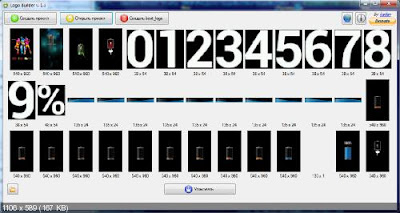
Go to the folder created by logobuilder and replace img1.png with your desired image
Note: image must be the same size and must be in png format renamed to img1
Paste your new image and replace the existing one
Now go back to logobuilder and click "make"
The update.zip will be created to the same folder
Copy to your sd card and flash through recovery
Note: you will need a custom recovery to flash the zip..read next post on how to create a custom recovery for your Android Mtk device.
You first need to read your device logo.bin file buy miracle box or aladdin box
Click read and tab "save as scatter" and check only logo and uncheck all the other boxes
Download logobuilder Here
Open logobuilder and close the pop up window
Click on "create new project"
Browse your logo.bin file and click open
Click "make new folder" and tab ok
The tool will extract the logo file like in the i mage below
Go to the folder created by logobuilder and replace img1.png with your desired image
Note: image must be the same size and must be in png format renamed to img1
Paste your new image and replace the existing one
Now go back to logobuilder and click "make"
The update.zip will be created to the same folder
Copy to your sd card and flash through recovery
Note: you will need a custom recovery to flash the zip..read next post on how to create a custom recovery for your Android Mtk device.
Available link for download
Monday, 22 August 2016
Q mobile A900 root custom recovery
Q mobile A900 root custom recovery

Make sure your phone is more than 60 percent charged.
Make sure your phone’s drivers are completely installed in your PC, To find more help about this Read our post about driver click here.
Make sure you have checked USB DEBUGGING box in developers settings to find more about developers options click here.
HOW TO ROOT?
Few things you need to download first are
Download and install Drivers for window before you begin the process. To download drivers click here.
Download Root package and extract it on desktop. Remember the name of folder in which you have extracted these files.
PROCESS
Connect your phone to PC via USB Cable.
Go to the folder where you have kept the extracted files on desktop and find a file with name of “RUN.BAT”. Double click it to run it.
A cmd window will open asking you to “press any key to continue”. Do as instructed and wait for the process to finish. After that your phone will Reboot Automatically.
Enjoy your Rooted Qmobile A900.
HOW TO INSTALL CUSTOM RECOVERY?
Go to the Google playstore from your mobile. Search and install ” MTK Mobile Uncle Tools”.
Download Custom Recovery for your mobile and extract the downloaded files in your PC.
Go to the extracted files where you will find a file named as“A900_cwmr_6.0.28_INCPAK.img”. Connect your to PC via USB CABLE and transfer this File in SD card of your Phone.
Now go to App drawer of your phone and Run ” MTK Mobile Uncle Tools” and select recovery update option.
Select “A900_cwmr_6.0.28_INCPAK.img” from your SD card and wait for the process to finish . After that your phone will have Root access with Custom Recovery Install. Enjoy It ! and give us your feedback.
i write incpak procesdure people already complain me and blocked my google plus account so please let me do my work for you
Available link for download
Sunday, 21 August 2016
Rooted but wont allow a custom recovery
Rooted but wont allow a custom recovery
Hi.
Ive been following various tutorials here to root and nothing seemed to worg apart from that Kingo program on pc, The only stock rom that would work is XXU1AOD1 an now im rooted no tutorials to flash a custom recovery works... When i do flash anything when i try to load recovery it boots into download mode with a message of "could not do normal boot"
These are the files i have and nothing seems to work after following all tutorials exactly how they say.
ODIN 3.07 3.09
Stock Rom I9195XXUCNEA_I9195VFRCNE4_I9195XXUCNEA_HOME.tar.md 5
TWRP Recovery recovery.tar.md5
CWM recovery-clockwork-6.0.5.1-serranoltexx.tar.MD5
S4 Mini root kit mod on sd card
CF Auto root
Ive been following various tutorials here to root and nothing seemed to worg apart from that Kingo program on pc, The only stock rom that would work is XXU1AOD1 an now im rooted no tutorials to flash a custom recovery works... When i do flash anything when i try to load recovery it boots into download mode with a message of "could not do normal boot"
These are the files i have and nothing seems to work after following all tutorials exactly how they say.
ODIN 3.07 3.09
Stock Rom I9195XXUCNEA_I9195VFRCNE4_I9195XXUCNEA_HOME.tar.md 5
TWRP Recovery recovery.tar.md5
CWM recovery-clockwork-6.0.5.1-serranoltexx.tar.MD5
S4 Mini root kit mod on sd card
CF Auto root
from xda-developers http://ift.tt/29RPAQH
via IFTTT
Available link for download
Subscribe to:
Posts (Atom)